

Have you ever tried to copy a sentence from a PDF file, but it just wouldn’t let you? Or maybe you have a picture of a book page on your computer, and you wish you could turn those printed words into something you can type and change?
If you have ever felt stuck with a “locked” document, you are in the right place. Today, we are going to talk about a magical tool called the PDF to Text Extractor. This tool is like a digital translator. It takes a file that acts like a solid “picture” and turns it into “living” words that you can move, change, and fix.
In this guide, we will learn exactly how this tool works, why it is so helpful for school and work, and how you can use it for free.
What Exactly is a PDF to Text Extractor?
To understand the tool, we first need to understand the PDF. Imagine you write a story and draw a picture on a piece of paper. Then, you put that paper inside a glass frame and glue it shut. People can see your story through the glass, but they cannot reach inside to change a word or fix a spelling mistake. That is what a PDF is like—it’s a document stuck behind “digital glass.”
A PDF to Text Extractor is the tool that safely takes the words out from behind that glass. It “reads” the document just like a human does and writes those words down into a new file (like a Notepad or Word file).
Once the words are extracted, they are no longer stuck. You can:
- Copy them to another website.
- Paste them into a school report.
- Delete parts you don’t like.
- Add new ideas of your own.
Why Should You Use This Tool?
You might be thinking, “Why can’t I just type the words myself?” Well, you could, but here is why using a tool is much better:
1. It Saves You Massive Amounts of Time
Imagine you have a 20-page book chapter in a PDF. If you type it by hand, it might take you five hours! But if you use a PDF to Text Extractor, it takes about 10 seconds. That gives you more time to play, study, or relax.
2. It Stops Mistakes (No More Typos!)
When humans type fast, we often make “typos.” We might hit the wrong key or skip a word. The extractor tool doesn’t get tired. It copies exactly what is on the page, so your new text is perfect.
3. It Makes Files Smaller
PDF files can be very “heavy” (large in size) because they hold a lot of formatting and images. Text files are “light.” Converting a PDF to text makes it much easier to send via email or save on a phone that doesn’t have much space.
4. It Helps People with Vision Problems
Some people use “Screen Readers” (software that reads words out loud). These readers often struggle with PDFs that are just images. By converting them to text, you make the information accessible to everyone!
Step-by-Step: How to Use the PDF to Text Extractor
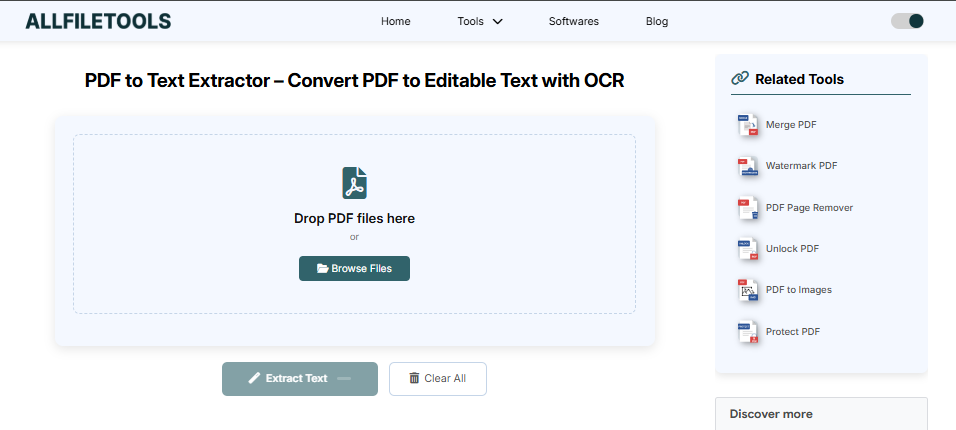
You don’t need to be a computer genius to use this. It is as easy as 1-2-3-4-5.
- Step 1: Open your browser and go to a trusted site like AllFileTools.com. And use this tool PDF to Text Extractor
- Step 2: Click “Select Files” or “Upload” to choose your PDF file from your device.
- Step 3: Select “Text” or “.txt” as your output format for the conversion.
- Step 4: Click the “Convert” button and wait a few seconds for the OCR to work.
- Step 5: Click “Download” to save your new editable text file to your computer.
Is It Safe to Use Online Tools?
This is a great question! When you use our PDF to Text Extractor, we take privacy very seriously.
- No Saving: We do not keep your files. Once you finish converting, the file is deleted from our “waiting room.”
- No Looking: No human being looks at your document. It is all handled by the computer code.
- Encrypted: This means your file travels through a “secret tunnel” on the internet so hackers cannot see it.
When is the Best Time to Use This Tool?
There are so many times when this tool can save the day. Here are a few examples:
- For Students: If your teacher sends a PDF study guide and you want to make your own notes from it.
- For Writers: If you found an old article you wrote years ago that is now stuck in a PDF, and you want to update it.
- For Lawyers and Business People: When they receive long contracts and need to find a specific word or change a date.
- For Cooks: If you have a PDF cookbook but only want to copy the ingredients list for one recipe to your phone’s shopping list.
Pro Tips for Perfect Text Extraction
To get the best results, try to make sure your PDF is clear. If the PDF is a very blurry photo, the OCR might get confused (for example, it might think an “o” is a “0”).
- Use high-quality scans.
- Make sure the page isn’t tilted or crooked.
- Check for dark shadows on the page.
Common Questions (FAQ)
Is this tool free?
Yes! Our PDF to Text Extractor is free to use. You don’t need to pay or sign up for a subscription.
Does it work on my phone?
Absolutely. You can use it on an iPhone, Android, or tablet. As long as you have an internet browser, you are good to go.
Can it convert handwritten notes?
If your handwriting is very neat, the OCR might be able to read it! However, it works best with printed text from books or computers.
Conclusion: Make Your Life Easier Today
Technology should make our lives simpler, not harder. You shouldn’t have to spend hours re-typing things that are already right in front of you. By using a PDF to Text Extractor, you are taking a shortcut that is smart, fast, and efficient.
Whether you are a 4th grader working on a project about space or a professional managing a big website, this tool is built for you. It turns “locked” documents into “open” ideas.
Stop struggling with uncopyable PDFs. Give our tool a try today and see how easy it is to set your words free!
🔹 Explore more powerful file conversion and online utilities at AllFileTools –
🔹 For technical support, digital solutions, and expert services, visit LetDigitalFly IT Services –
🔹 Discover additional career and productivity resources at Resume Slip Builder –
