

If you’ve ever wrestled with a tangle of HDMI cables behind your gaming console or spent ten minutes connecting a laptop to a conference room display, you already know the frustration that wired setups bring to modern workspaces. Cable clutter isn’t just an eyesore—it limits where you can place screens, creates tripping hazards, and slows down transitions between devices. Wireless HDMI for gaming and office productivity eliminates these headaches by streaming high-quality video and audio from source to display without a single cable running between them. For gamers, this means positioning a monitor or TV anywhere in the room without sacrificing visual fidelity. For professionals, it transforms meeting rooms into seamless presentation spaces where any team member can share their screen in seconds. This article dives into practical optimization techniques that ensure your wireless HDMI setup delivers low latency for competitive gameplay, maintains crisp image quality for detailed spreadsheets and design work, and keeps your environment refreshingly clutter-free. Whether you’re building a dedicated gaming station or upgrading an entire office floor, the strategies ahead will help you get the most from this technology.
Understanding Wireless HDMI Technology: The Foundation for Optimization
How Wireless HDMI Works: A Brief Technical Overview
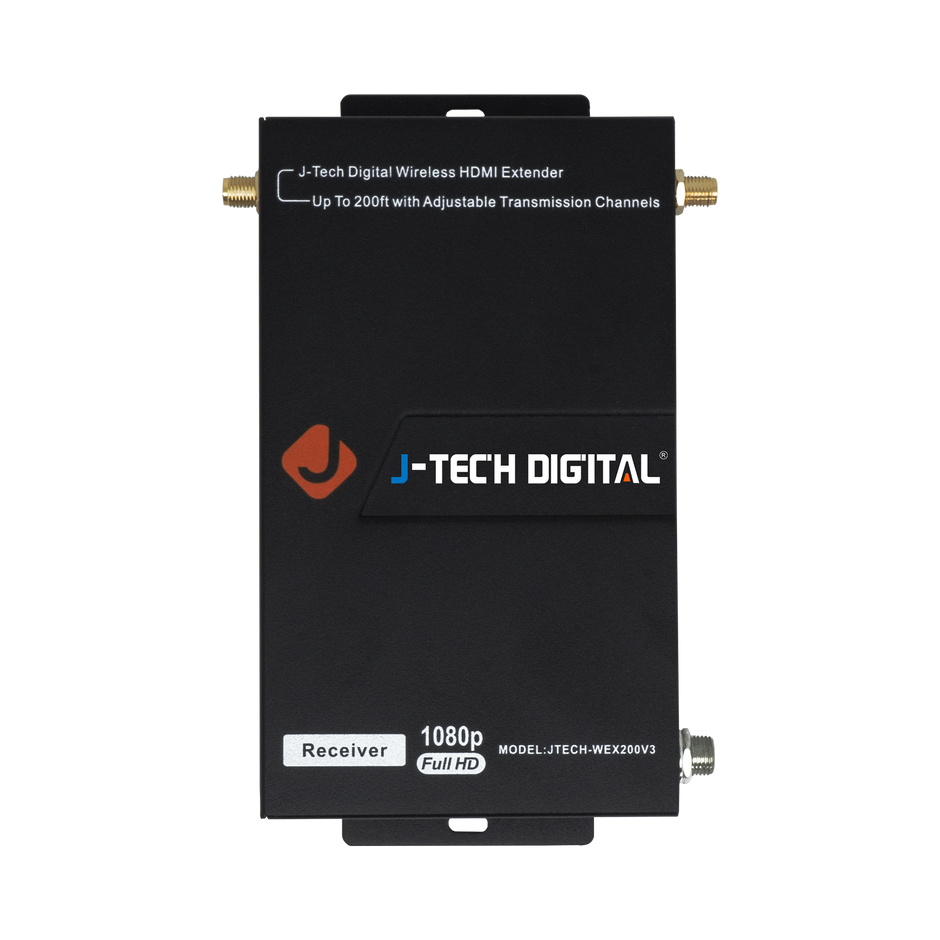
Wireless HDMI systems consist of two core components: a transmitter that connects to your source device (gaming console, laptop, or media player) and a receiver that plugs into your display. The transmitter captures the HDMI signal, compresses or encodes it depending on the protocol, and broadcasts it wirelessly to the receiver, which decodes and delivers the video and audio to your screen. Most systems operate on either the 5 GHz Wi-Fi band or the 60 GHz band. The 5 GHz option offers greater range and better wall penetration, while 60 GHz delivers virtually uncompressed video with ultra-low latency but requires a clear line of sight between devices. Performance depends on several factors: the distance between transmitter and receiver, physical obstructions like walls or furniture, and competing wireless traffic from routers, Bluetooth devices, or microwaves sharing similar frequencies.
Key Benefits: Enabling Clutter-Free Setups and High-Quality Video
The most immediate advantage of wireless HDMI is the elimination of cable runs that dictate where you can place screens and sources. Without cables tethering your TV to a console or your laptop to a projector, you gain complete freedom to arrange rooms for comfort, aesthetics, or collaboration. This clutter-free setup also simplifies maintenance—no more tracing cables to diagnose connection issues or reorganizing wire bundles when adding new equipment. Equally important, modern wireless HDMI technology preserves high-quality video output, supporting resolutions up to 4K and refresh rates that satisfy both demanding gamers and professionals who need pixel-perfect clarity for design reviews or data-heavy presentations. When properly optimized, the visual difference between a wired and wireless connection becomes virtually imperceptible.
Optimizing Wireless HDMI for Gaming: Reducing Latency and Enhancing Visuals
Achieving Low Latency for Smooth Gameplay
In competitive gaming, even a few milliseconds of delay can mean the difference between landing a critical shot and watching your character respawn. Latency in wireless HDMI stems from three primary sources: the encoding process at the transmitter, the wireless transmission itself, and the decoding at the receiver. To minimize this chain of delays, start by placing your transmitter and receiver within direct line of sight, ideally no more than a few meters apart for twitch-based games. Switch your wireless HDMI system to a dedicated 60 GHz channel if available, as this frequency band handles uncompressed or lightly compressed video with significantly less processing overhead. Clear competing devices from the same frequency space—move routers, baby monitors, and Bluetooth speakers away from the transmission path. If your system operates on 5 GHz, manually select a channel that doesn’t overlap with your home Wi-Fi network. Finally, enable any “game mode” or low-latency mode offered by your wireless HDMI kit, which prioritizes speed over error correction.
Ensuring High-Quality Video for an Immersive Experience
Low latency means nothing if your game looks washed out or blurry on screen. Confirm that your wireless HDMI system is configured to pass through your source’s native resolution—whether that’s 1080p at 120 Hz for fast-paced shooters or 4K at 60 Hz for visually rich RPGs. Check your display’s input settings and ensure it isn’t downscaling the received signal. Color accuracy matters too: verify that your system supports at least 4:4:4 chroma subsampling or HDR passthrough if your games and display are HDR-capable. On the source side, match your console or PC output resolution to what the wireless kit supports natively rather than relying on upscaling at either end. High-quality video during gameplay also depends on stable bandwidth, so avoid streaming or downloading large files on the same network while gaming wirelessly. These adjustments collectively deliver an immersive visual experience that rivals a direct cable connection.
Enhancing Office Productivity with Wireless HDMI Solutions
Solutions for Connecting Multiple Devices Wirelessly
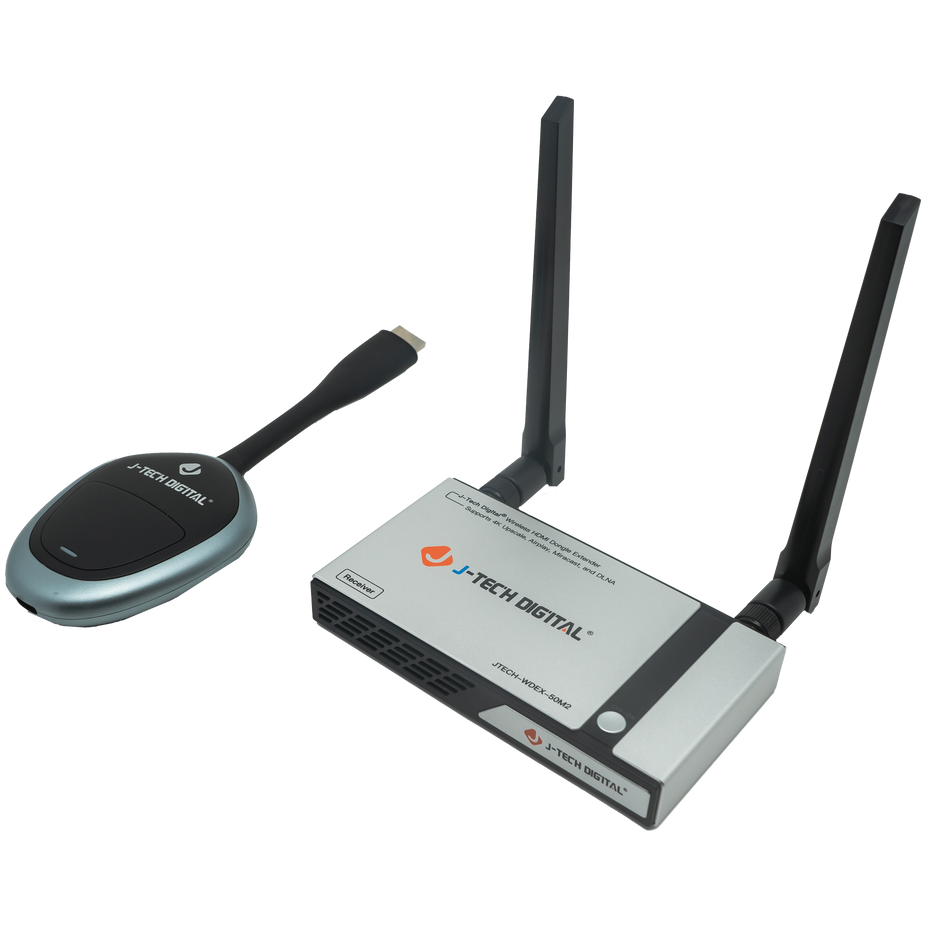
In a typical office, multiple team members need to share their screens during meetings, and individual workstations often require connections to external monitors or projectors scattered across different desks and rooms. Wireless HDMI simplifies this by letting any laptop or desktop connect to a shared display without hunting for adapters or waiting for cable swaps. For meeting rooms, install a receiver on the room’s primary display and keep lightweight transmitters available as dongles that employees plug into their laptops before presenting. Some wireless HDMI systems support multi-device pairing, allowing several transmitters to connect to one receiver with push-button switching between presenters—eliminating the awkward pause while someone disconnects and another reconnects. For individual workstations, a dedicated transmitter-receiver pair lets you position a secondary monitor on the opposite side of your desk or mount it on a wall without routing cables through furniture. When configuring these setups, ensure each transmitter-receiver pair operates on a distinct channel to prevent crosstalk, especially in dense office environments where dozens of wireless signals coexist.
Best Practices for Long Distance Transmission in Office Environments
Offices often require signals to travel farther than a typical living room—from a podium to a ceiling-mounted projector, or from a workstation to a display across an open floor plan. To maintain reliable long distance transmission, choose systems rated for your actual required range and add a comfortable margin. Position transmitters and receivers with minimal obstructions between them; glass partitions are generally fine, but concrete pillars and metal filing cabinets severely degrade signals. When true line of sight isn’t possible, use a 5 GHz system over 60 GHz since lower frequencies handle walls and obstacles more gracefully. For distances exceeding a single unit’s range, consider wireless HDMI repeaters placed at midpoints to boost the signal without introducing noticeable latency. Keep transmitters elevated—mounting them on shelves or wall brackets above desk height reduces interference from human traffic and furniture. Finally, conduct a brief wireless site survey before permanent installation to identify dead zones and competing access points that could compromise your high-quality video feed across the office.
Building a Future-Ready Wireless HDMI Setup for Gaming and Productivity
Wireless HDMI bridges the gap between convenience and performance for both gamers and professionals, delivering cable-free connections without compromising the experience. The key to getting the most from this technology lies in deliberate optimization—selecting the right frequency band for your use case, placing transmitters and receivers strategically, and managing the wireless environment around them. For gaming, prioritizing low latency through line-of-sight placement, dedicated channels, and game-mode settings keeps you competitive. For office productivity, multi-device switching and proper long distance transmission planning transform meeting rooms and workstations into efficient, clutter-free spaces where collaboration happens without technical delays. Setup and maintenance don’t require deep technical expertise, but they do demand attention: test before you mount, audit your channels periodically, update firmware, and keep signal paths clear. These small habits compound into consistently high-quality video and reliable connections month after month. As wireless protocols continue advancing—with higher bandwidth, lower latency, and smarter interference management—the gap between wired and wireless will narrow further. By applying the strategies outlined here, you’re not just solving today’s cable problems; you’re building a flexible foundation ready to absorb tomorrow’s improvements with minimal disruption.
