
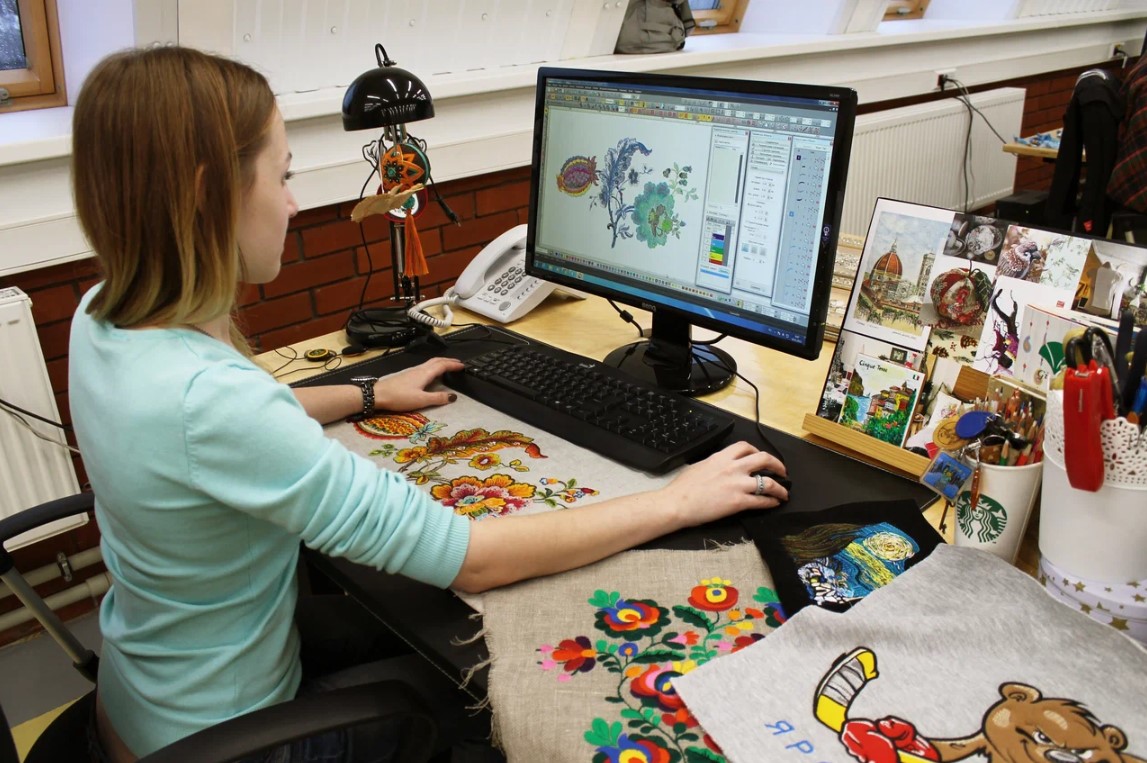
Great embroidery catches the eye with crisp edges smooth coverage and stitches that hold up wash after wash but none of that happens by accident which is why learning to convert image to PXF file Format accurately becomes the single most important step toward professional results on your Wilcom-powered setup. PXF serves as the native project format in Wilcom Embroidery Studio keeping every object stitch type density value pull compensation angle and sequence fully editable so you can reopen tweak and perfect designs long after the initial digitizing session. When you nail the conversion process your logos stitch cleanly run efficiently on multi-head machines and look sharp on everything from polos to thick jackets without the usual headaches of thread breaks puckering or registration drift. Rush the conversion or skip key prep steps and you end up fighting the software spending hours fixing what should have been done right the first time. This guide shares practical techniques that deliver accurate PXF files every time so your stitch quality jumps to the next level and stays there.
Understanding Why PXF Conversion Matters So Much
PXF files lock in parametric data that flat stitch formats like DST or EXP simply cannot preserve letting you adjust satin widths change fill patterns reorder colors or add underlay without starting over. Accurate conversion from image to PXF means the software reads clean paths understands intended stitch types and applies compensation intelligently right from the start. Poor conversion introduces artifacts lost angles or incorrect sequencing that force manual rescues later eating time and risking quality dips. When done right the PXF becomes your reliable master file ready for production tweaks client revisions or resizing across different garments all while maintaining the crisp professional look that keeps customers coming back.
Choosing the Best Source Image for Conversion
Grab the highest-quality image available ideally a vector file in AI EPS SVG or PDF format that scales without pixelation or jagged edges. Vector sources give precise paths that Wilcom interprets accurately leading to smoother satin stitches and defined fills. If only a raster arrives open it in vector software and trace manually or with high-accuracy auto-trace tools cleaning up every stray point and merging overlapping shapes. Reduce the color palette early to six to twelve realistic thread shades eliminating gradients and subtle tones that complicate digitizing. Strengthen outlines on text and key elements so satin stitches follow clear borders instead of wandering. Set the final stitch size now locking proportions to prevent distortion then center the design with balanced margins for underlay and compensation stitches.
Step-by-Step Process for Accurate Image to PXF Conversion
Launch Wilcom EmbroideryStudio and start a fresh design matching your target hoop size usually five by seven inches or larger on industrial models. Import the cleaned image onto a locked reference layer lowering opacity so it acts as a perfect guide without interfering. Create separate layers for underlay fills outlines text and special effects naming them clearly for easy navigation later. Begin digitizing back to front laying zigzag or edge-run underlay first to stabilize fabric before main stitches go down. Apply tatami or complex fills to large areas adjusting density between point four and point six millimeters based on fabric weight. Switch to satin columns for borders and lettering keeping widths consistent between point eight and one point two millimeters while angling stitches perpendicular to curves for rounded edges.
Fine-Tuning Stitch Properties for Flawless Results
Zoom in close and dial in pull compensation adding more on outer curves of text and shapes to fight fabric shrinkage so letters stay round after relaxing. Lower density slightly in heavy fill zones on fleece to avoid stiffness and increase it on thin cottons for solid coverage. Insert tie-in and tie-off stitches at color block ends for tidy reverses especially on lightweight knits. Group same-color objects together to cut unnecessary trims and reorder the sequence logically minimizing jump lengths and travel time. Run the stitch simulator repeatedly watching for long travels tiny stitches or abrupt direction changes that could snap thread then fix them immediately.
Exporting and Testing Your PXF Master File
Once the simulation runs smoothly save the project as your master PXF file treating it like gold. Export production stitch files like DST digitizing or EXP only when ready for specific machines keeping the editable PXF untouched as your source of truth. Transfer the stitch file to a formatted USB stick load a test sew on scrap fabric matching your final material and stabilizer and watch how stitches settle in real conditions. Note any puckering shrinkage or tension issues then reopen the PXF and update compensation density or underlay settings accordingly. These real-world tweaks turn accurate conversions into exceptional performers that handle different fabrics and thread brands reliably.
Avoiding Common Conversion Pitfalls
Skipping thorough image cleanup creates jagged paths that no editing can fully repair. Auto-digitizing without review often produces chunky lettering and unexpected breaks so always inspect and refine manually. Ignoring pull compensation on curved elements leads to leaning or shrinking letters after washing while excessive density causes thread buildup. Keep tiny details realistic hairlines rarely stitch well and look cleaner simplified into bold satin columns. Overlooking color grouping adds extra trims slowing multi-head production so sequence thoughtfully from the beginning.
High-quality stitch results truly begin with accurate PXF conversion because a well-prepared file sets the foundation for everything that follows smooth runs clean coverage and durable embroidery that impresses every time. You gain efficiency reliability and creative freedom knowing your images convert cleanly edit easily and perform consistently across jobs. Next time a image arrives resist jumping straight to auto-digitize instead prep it carefully digitize with purpose and test thoroughly. Your Wilcom setup will reward you with beautiful results that make every project feel effortless. Grab that next design open your software and start converting accurately today smooth stitches and happy customers await you.
