

For many iPhone users, being locked out of their own Apple ID can be a nightmare. Maybe you bought a secondhand iPhone that still shows someone else’s Apple ID, or you simply forgot your password after a recent iOS update. Whatever the case, removing an Apple ID from an iPhone without a password might seem impossible, but there are actually several effective solutions that can help you regain access to your device safely.
In this guide, you’ll learn step-by-step methods of how to remove Apple ID from iPhone without password, including both official Apple approaches and a professional unlocking solution that works even when traditional methods fail.
Why You Might Need to Remove Apple ID from iPhone
Before jumping into the solutions, let’s understand why you might want to remove an Apple ID:
- You bought a second-hand iPhone that’s still linked to the previous owner’s Apple ID.
- You forgot the Apple ID password and can’t access iCloud or App Store.
- The device is locked after a system restore or update.
- You want to switch to a new Apple ID without restrictions.
Whatever your situation, removing the old Apple ID ensures you have full control of your device, allowing you to use iCloud, FaceTime, App Store, and Find My iPhone freely again.
Method 1: Remove Apple ID via Apple’s Official Way
If you can access your iPhone and remember the Apple ID credentials, removing it is straightforward. Go to Settings > [Your Name] > Sign Out. Enter your Apple ID password to confirm. After signing out, your Apple ID will be removed from the device.
However, this method only works if you know the password. If you’ve forgotten it or bought a secondhand device that’s still locked, you’ll need to try other approaches.
Method 2: Use iForgot to Reset the Password
Apple’s iForgot service lets you reset your Apple ID password if you still have access to the email or trusted phone number. Visit iforgot.apple.com. Enter the Apple ID email address. Follow the on-screen instructions to reset the password. Once reset, use the new password to sign out from the old Apple ID on your device.
This method is safe but won’t help if you can’t access the trusted email or phone number linked to the account.
Method 3: Remove Apple ID from iPhone without Password via MagFone iPhone Unlocker
If the official methods don’t work, or if your iPhone is stuck on the Activation Lock screen, a professional iPhone unlocking tool can help. One of the most effective solutions available today is MagFone iPhone Unlocker, which is designed to remove Apple ID and Activation Lock from iPhone, iPad, and iPod touch, without needing the previous owner’s password. It supports the latest iOS versions, including iOS 18–iOS 26, and even works on A12 and later devices.
Key Features of MagFone iPhone Unlocker:
- Remove Apple ID and Activation Lock without password.
- Unlock screen passcode, Face ID, or Touch ID in minutes.
- Compatible with all iPhone models and iOS 18–26.
- Simple, secure, and doesn’t require iTunes or iCloud.
How to Use MagFone iPhone Unlocker:
Step 1: Download and install MagFone iPhone Unlocker on your Windows or Mac computer. Connect your iPhone via USB and select the “Remove Apple ID” mode.
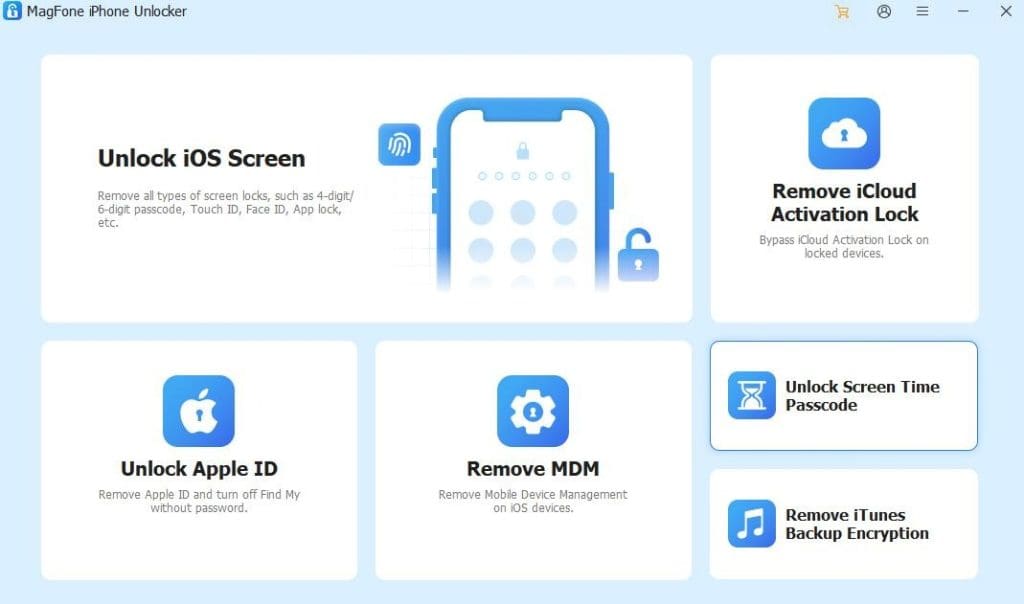
Step 2: Click Start and follow the on-screen instructions. Download the firmware package required to remove Apple ID.

Step 3: Within minutes, your iPhone will be free from the previous Apple ID. Once the process completes, you can set up a new Apple ID and enjoy all features of your iPhone without restrictions.

Method 4: Contact Apple Support (Last Resort)
If your device is still under warranty or you have valid proof of purchase, Apple Support may help you remove the old Apple ID. You can visit an Apple Store or contact Apple Support online and explain your situation. Be prepared to show a receipt or ownership verification.
While this is the most official approach, it’s not always convenient, especially if you bought the device secondhand and don’t have the original proof of purchase.
Conclusion
Removing Apple ID from iPhone without password is challenging but entirely possible. You can try Apple’s iForgot service or contact Apple Support, but these methods require access to account details or proof of ownership.
If you want a faster and more flexible solution, MagFone iPhone Unlocker is an excellent choice. It helps you safely remove Apple ID, screen lock, and even Activation Lock from any iPhone or iPad, giving you full control over your device again. So, if your iPhone is locked to an Apple ID and you can’t remember the password, MagFone iPhone Unlocker is your reliable, one-click way to get back in. You can enjoy MagFone Black Friday deal here.