
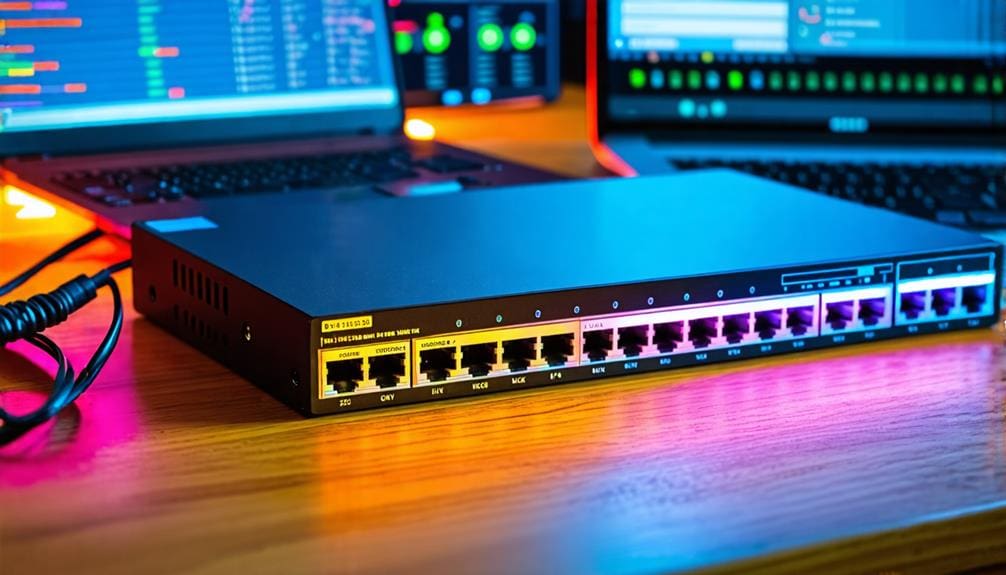
A smooth network makes everything better. Whether you are at home or in an office, Ethernet switches help connect your computers and devices. They send data from one device to another quickly and without problems. But sometimes they stop working the way they should. This can make the internet slow or stop it completely.
Many people feel frustrated when the network does not work. The good news is you can fix common issues by following simple steps. You do not need to be a tech expert. With small checks and changes, you can bring your network back to life.
In this article, you will learn how to find and fix problems with Ethernet switches.
Lets talk
Check the Power Supply First
The first thing you need to check is the power. Without power, your Ethernet switches won’t work because even the best cables and settings cannot fix a device that isn’t receiving the energy it needs to operate and keep your network connected.
- Look at the power cable. Make sure it is plugged in tightly.
- Check the power adapter. See if it is working fine.
- Some switches have a power light. If the light is off, the switch may not be receiving power.
- Try plugging the switch into another socket.
- If the power cable looks damaged, replace it with a new one.
According to a report, the use of Ethernet switches is continuously rising, especially among ITs. The market is projected to surpass $43.48 billion by the end of 2025.
Inspect Ethernet Cables Carefully
Once the power is good, the next step is to check the cables. They carry data between devices.
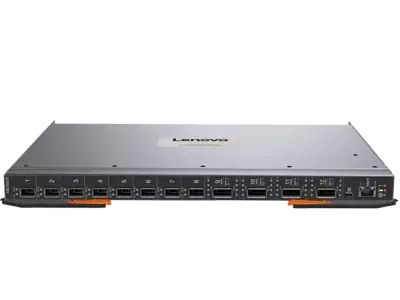
- Look at each Ethernet cable. Make sure both ends are plugged in firmly.
- Check for cuts or bent pins in the cables. A damaged cable may stop data from moving.
- Try using a different cable if you see signs of wear and tear.
Confirm Connection Lights Are On
Most Ethernet switches have small lights near each port. These lights show if the switch is working.
- Look at the lights while the devices are connected.
- A blinking light means data is moving.
- A solid light means the connection is ready.
- If no light is on the port, check the cable and connection.
- Try plugging the cable into another port to see if that port works.
Resetting the Switch Safely
If cables and power are fine, but the issue stays, it is time to reset the switch.
- Find the reset button on the switch.
- Press and hold it for 10 seconds using a small tool like a pin.
- Wait for the lights to blink or turn off and on again.
- Restart your devices after the switch resets.
- Do not reset often, as it may erase settings you need.
Check for Overheating Problems
Switches can overheat if they are used a lot or placed in a tight space.
- Touch the switch gently if it feels too hot; turn it off.
- Make sure the switch is in a place with air flow.
- Keep it away from walls or objects that block heat from escaping.
- Dust the vents and fans regularly.
- Do not place it near heaters or in direct sunlight.
Identify Network Loops and Conflicts
Sometimes two devices send data in circles, causing a loop. This slows everything down.
- Check if the switch is connected to multiple other switches.
- Avoid using more than one cable between two devices.
- Look for errors or collisions in the lights.
- Disconnect extra switches and connect one at a time.
- Make sure each device has a unique address.
Use Diagnostic Tools
There are simple tools to find network problems easily.
- Use built-in tools like ping or tracert to check connectivity.
- Look at the switch’s web interface if available. It shows error logs and status.
- Run tests to find packet loss or delays.
- Keep a record of problems to spot patterns over time.
Diagnostics give you clear information. With these tools, you can quickly find where the issue lies.
Final Checks Before Calling for Help
After doing these steps, make sure everything is ready before asking for professional support.
- Restart your computer and other devices.
- Check cables and connections one more time.
- Make sure the switch is cool and not overheating.
- Update the software if possible.
- Test with another switch if available.
Conclusion: Be Confident Fixing Network Issues
Troubleshooting Ethernet switch problems is not as hard as it seems. By checking power, cables, lights, and heat, you fix many issues fast. Resetting the switch and updating its software also helps. Using tools to diagnose problems gives you a clearer picture. Always make sure your setup is clean and organized.
By following these steps, you will feel confident handling network troubles. You do not need to call a technician for small problems. A few simple checks bring back fast and smooth connections. Keep your network running like a pro and enjoy trouble-free internet every day.
