
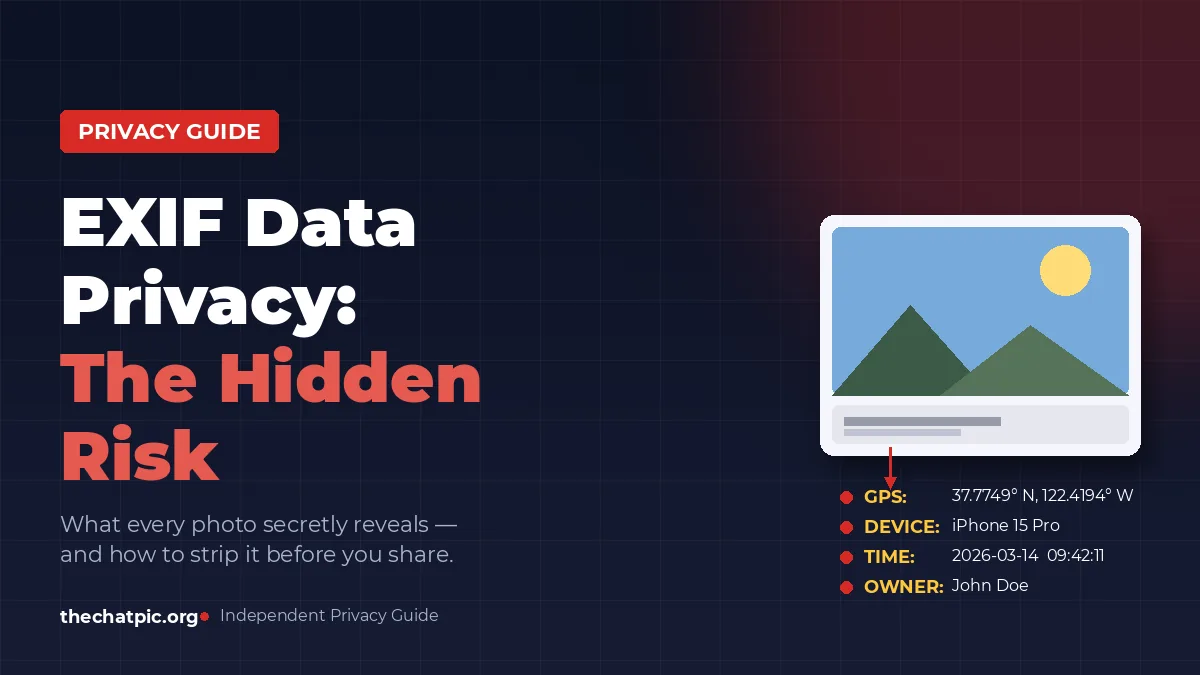
Every photo on your phone carries a hidden file attached to it. It is called EXIF data, and it can quietly reveal your home address, your daily routine, the exact device you used, and the second you pressed the shutter. Most people share photos without ever opening this file, because their gallery app does not show it. That is exactly why EXIF data privacy has become one of the most overlooked risks on the modern internet.
In this guide, I will explain what EXIF data actually contains, why it is a real privacy threat (with documented cases), which apps strip it and which do not, and the exact steps to remove EXIF from photos on Windows, Mac, iPhone, and Android. No fluff, no scare tactics, just what I have learned testing this across years of working with image metadata.
What Is EXIF Data in a Photo?
EXIF (Exchangeable Image File Format) is a metadata standard embedded inside JPEG, TIFF, HEIC, and many RAW image files. It stores technical and contextual information that the camera writes automatically the moment you take a shot, including device model, exposure settings, timestamp, software version, and often the precise GPS coordinates of the location.
The format was introduced in 1995 by the Japan Electronic Industries Development Association (JEIDA) and is now maintained by the Camera & Imaging Products Association (CIPA). It was designed for photographers and software developers, not for the average person posting selfies. That mismatch is where the privacy problem begins.
A single EXIF block can contain over 100 individual fields. Most people only ever see the photo itself, while the file silently carries the rest.
Common EXIF fields include:
- Camera make and model (e.g., Apple iPhone 15 Pro)
- Date and time the photo was taken, down to the second
- GPS latitude, longitude, and altitude
- Lens model, focal length, aperture, ISO, shutter speed
- Software used to edit the image (Photoshop, Lightroom, Snapseed)
- Orientation, color space, white balance
- A small embedded thumbnail (which can persist even after edits)
- Owner name or copyright string, if the user set one
Why Is EXIF Data a Privacy Risk?
EXIF data is a privacy risk because it can attach your precise GPS location, exact timestamp, and unique device fingerprint to any photo you share. Anyone who downloads the original file can read this metadata in seconds with free tools, often without you ever knowing they looked.
The danger is not theoretical. The most consistent threat is location leakage. When a phone takes a photo with location services on, it writes latitude and longitude with accuracy down to a few meters. Share that photo of your dog in the living room, and someone can map your front door.
Timestamps are the second issue. A trickle of photos posted over weeks lets an outsider reconstruct your daily routine: when you wake up, when you leave for work, when the house is empty. Stalkers, burglars, and abusive ex-partners have all used this technique.
The third risk is device fingerprinting. Combinations of camera serial numbers, software versions, and quirks in the EXIF block can link photos shared on different accounts back to the same person, even across pseudonyms.
Documented real-world cases:
- John McAfee, 2012. While McAfee was hiding from authorities, a Vice reporter published a photo of him captioned “We are with John McAfee right now, suckers.” The original JPEG still carried GPS data placing them in Guatemala. Within hours, his location was public.
- Higinio Ochoa, 2012. The hacker known as “w0rmer” posted a taunting photo of his girlfriend on Twitter. The iPhone EXIF carried GPS coordinates pointing to a suburb of Melbourne, Australia. The FBI used it to identify her, then him.
- Adam Savage, 2010. The MythBusters host tweeted a photo of his car parked outside his home. The EXIF coordinates revealed his home address. He later spoke publicly about the lesson.
These are not edge cases. They are the same mistake any user can make today.
How to Remove EXIF Data From Photos (Step by Step)
To remove EXIF data from photos, you strip the metadata block from the file before sharing it. The fastest method depends on your device. Below are the exact steps for Windows, macOS, iPhone, and Android, plus a universal command-line option for power users.
On Windows 10 and 11
- Right-click the image file in File Explorer.
- Click Properties, then open the Details tab.
- At the bottom, click Remove Properties and Personal Information.
- Choose Create a copy with all possible properties removed, then click OK.
Windows produces a clean copy and leaves your original untouched. This is the safest workflow.
On macOS
- Open the photo in the Preview app.
- Go to Tools → Show Inspector (or press ⌘I).
- Click the GPS tab and choose Remove Location Info.
- To strip everything, install the free app ImageOptim, drag the photo onto it, and it removes all metadata in one pass.
On iPhone (iOS 15 and later)
- Open the Photos app and select your image.
- Tap the (i) info button at the bottom.
- Tap Adjust next to the location, then No Location.
- To also block future photos from storing GPS, go to Settings → Privacy & Security → Location Services → Camera and set it to Never.
Note that iOS only lets you remove location from the in-app share sheet. Other EXIF fields (device, timestamp) still remain in the file unless you use a third-party app like Metapho.
On Android
- Open Google Photos, tap the image, then the three-dot menu.
- Choose Remove location (Google Photos strips this on the shared copy, not the original).
- For a complete wipe, install Scrambled Exif from F-Droid or Play Store, open a photo with it, and choose Share via Scrambled Exif.
Using ExifTool (Any Operating System)
For anyone handling photos in bulk, ExifTool by Phil Harvey is the industry standard. The command below strips every metadata tag from every JPEG in a folder:
exiftool -all= -overwrite_original *.jpg
I use this when preparing image batches for publication, because it is faster and more reliable than any GUI tool.
Which Apps Strip EXIF Automatically (And Which Don’t)?
Most large social networks strip EXIF data from images at upload time, but the rules are inconsistent, and “stripped on display” is not the same as “deleted from storage.” Below is a comparison of common platforms based on testing and public documentation.
| Platform | Strips EXIF on Upload? | Notes |
|---|---|---|
| Yes (public-facing) | Stores original metadata internally | |
| Yes | Removes GPS and most fields | |
| Twitter / X | Yes | Strips on upload since 2012 |
| Yes (for sent media) | Original retained if you save to gallery | |
| Telegram | Mostly yes | “Send as File” preserves EXIF |
| Discord | No | Full EXIF retained, downloadable by anyone |
| Yes (via i.redd.it) | Third-party hosts may keep it | |
| Email (Gmail, Outlook) | No | EXIF travels with the attachment |
| Google Drive / iCloud | No | Full file is stored as-is |
| Direct download links | No | Anything you self-host carries EXIF |
The takeaway: if you share photos through email, cloud storage, Discord, or your own website, EXIF is almost certainly intact. Stripping needs to happen on your end before the file leaves your device.
For sensitive uploads, I recommend hosting on a service that explicitly removes metadata. A privacy-first image host like chatpic strips EXIF on upload and does not require an account, which removes the second common failure point of metadata leaks (linking a photo to a logged-in identity).
Common EXIF Privacy Mistakes People Still Make
Even people who know about EXIF make a handful of repeat mistakes. I have audited image folders for journalists, small business owners, and freelancers, and the same patterns show up every time.
Mistake 1: Trusting the platform to strip everything. Facebook strips public EXIF, but the original copy still sits on its servers, and not every “share” path strips equally. A photo sent in a Messenger chat is not handled the same as a feed post.
Mistake 2: Sharing the original through email or cloud links. A Dropbox or Google Drive link delivers the raw file. The recipient gets the full EXIF block, GPS included.
Mistake 3: Editing a photo and assuming the metadata is gone. Cropping, applying filters, or rotating a photo in most apps preserves EXIF. Many editors even write new metadata on top, identifying the editing software.
Mistake 4: Forgetting the embedded thumbnail. Older EXIF specifications store a small JPEG preview inside the metadata. If you cropped a photo to hide something, the original uncropped thumbnail may still be there. This has caught journalists out.
Mistake 5: Posting screenshots from a phone without checking. Screenshots on iOS and Android carry their own metadata, including the device and sometimes the app that produced them.
Mistake 6: Using “online EXIF removers” without checking the site. Many free EXIF stripping websites log uploads. You are trading metadata privacy for upload privacy. Use offline tools (ExifTool, ImageOptim, Scrambled Exif) when the photo is sensitive.
Frequently Asked Questions
Can someone find my home from a photo I posted?
Yes, if the photo still carries GPS EXIF data and was shared through a platform that does not strip metadata (email, Discord, your own site, cloud links). Coordinates in EXIF are accurate to within a few meters, which is enough to identify your house on any mapping service.
Does taking a screenshot remove EXIF data?
A screenshot does not contain the original photo’s EXIF, but it creates its own metadata block. The screenshot file typically records the device, OS version, and timestamp. It will not leak GPS in most cases, but it is not a true anonymization step.
Do social media platforms keep my EXIF data internally?
Most do. Facebook, Instagram, and Twitter strip EXIF from the public-facing version of your image, but the original upload is usually retained server-side. This matters if you are worried about subpoenas, data breaches, or internal access, not just public viewers.
Is EXIF data only in JPEG files?
No. EXIF appears in JPEG, TIFF, HEIC, WebP, and most RAW formats (CR2, NEF, ARW, DNG). PNG files use a different metadata standard (tEXt and iTXt chunks) but can still carry identifying information. GIFs generally do not store EXIF.
Can I remove EXIF data from a photo someone else sent me?
Yes. EXIF lives in the file, not the sender’s account. Save the photo to your device and run it through any of the tools listed earlier (Windows Properties, ImageOptim, ExifTool, Scrambled Exif). The metadata strips the same way regardless of origin.
Does removing EXIF data reduce image quality?
No. EXIF is a metadata block separate from the image’s pixel data. Removing it does not recompress the photo or change a single pixel. The file size drops by a few kilobytes, nothing more.
What is the safest way to share a sensitive photo online?
Strip EXIF locally first, then upload to a host that does not log your account or IP unnecessarily. Privacy-focused image platforms such as thechatpic.org remove metadata on upload and do not require sign-up, which avoids tying the image to any identity on your end.
The Bottom Line on EXIF Data Privacy
EXIF data is small, invisible, and easy to forget, which is exactly why it has caused so many real-world privacy failures. The fix is straightforward: assume every photo you have ever taken on a smartphone carries GPS coordinates, a timestamp, and a device fingerprint, and treat any file you share outside a major social network as if those details are still attached.
Three habits will cover ninety percent of the risk. First, turn off location access for your camera app unless you have a specific reason to keep it on. Second, learn one stripping tool well, whether that is the Windows right-click option, ImageOptim on Mac, or ExifTool from the command line. Third, when you do need to share a sensitive image publicly, use a host that strips metadata for you, like chatpic.org, rather than relying on the platform to do it cleanly.
The internet does not forget photos. Make sure the ones you put on it only carry what you intended to share.