

Gaming has become one of the most popular activities for children, whether they’re racing through colorful worlds on a tablet or teaming up with friends on a console. As mobile and console gaming continues to grow among younger players, parents face a familiar dilemma: finding a controller that can survive the enthusiasm of small hands while working seamlessly across multiple devices. Between accidental drops, sticky fingers, and the constant switching between an iPad and a gaming console, the wrong gamepad can quickly become a source of frustration rather than fun.
This article tackles that challenge head-on by exploring wireless gamepads designed with durability, multiplatform support, and genuine gaming enjoyment in mind. We’ll examine why robust build quality matters more than you might think, how cross-platform compatibility simplifies your child’s gaming setup, and which features—like responsive trigger buttons and ergonomic design—actually make a difference in daily play. Finally, we’ll walk you through a practical selection and setup guide so you can confidently choose a wireless controller that keeps up with your child’s adventures across every screen in the house.
Why Durability is Non-Negotiable in Kids’ Wireless Gamepads
Anyone who has handed a child an electronic device knows the inevitable truth: it will be dropped, squeezed, tossed onto a couch, and occasionally used as a pretend spaceship. A wireless controller built for adult hands and adult care simply won’t survive the reality of a seven-year-old’s gaming session. Durability isn’t just about protecting your investment—it’s directly tied to safety. A gamepad that cracks open after a fall can expose small batteries or sharp internal components, creating hazards no parent wants to deal with.
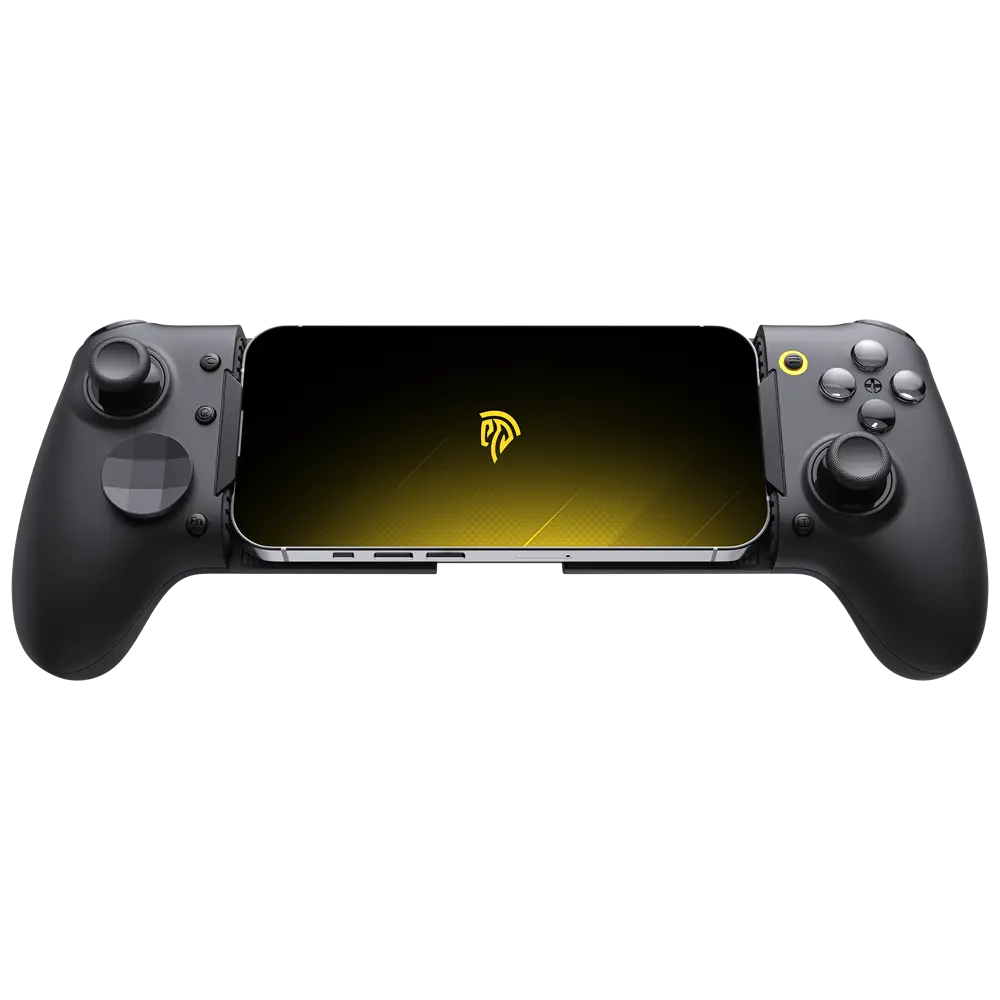
Common wear-and-tear issues with children’s controllers include joystick drift from aggressive use, trigger buttons that lose their spring after repeated mashing, and housing that separates at the seams following drops onto hard floors. Charging ports loosen over time when cables are yanked at odd angles, and rubberized grips peel away from sweaty or sticky hands. These aren’t minor annoyances—they render a gamepad unusable within months, forcing repeated replacements.
The materials and build quality that prevent these failures make a measurable difference. High-grade ABS plastic with internal ribbing distributes impact force across the shell rather than concentrating it at a single stress point. Recessed joystick mechanisms with metal pivot points resist drift far longer than all-plastic assemblies. Quality gamepads also feature reinforced USB-C ports with additional solder points and textured, bonded grip surfaces rather than glued-on rubber overlays.
Key Durability Features to Look For
When evaluating a wireless controller for your child, focus on a few specific features that separate genuinely tough products from those that merely look sturdy. Reinforced casing with rounded corners absorbs drops better than angular designs—look for controllers rated to survive falls of at least three feet onto hard surfaces. Some gamepads offer splash-resistant coatings or sealed button membranes that protect internal circuits from spilled juice or sweaty play sessions, though fully waterproof controllers remain rare in this category. Internally, double-injection molded buttons last significantly longer than single-piece plastic, and hall-effect joysticks eliminate the mechanical contact that causes drift over time. Parents should also check whether the battery compartment is secured with screws rather than a simple clip, both for longevity and to prevent curious fingers from accessing lithium cells. These features collectively address the two concerns parents care about most: keeping their child safe and avoiding the frustration of replacing a broken gamepad every few months.
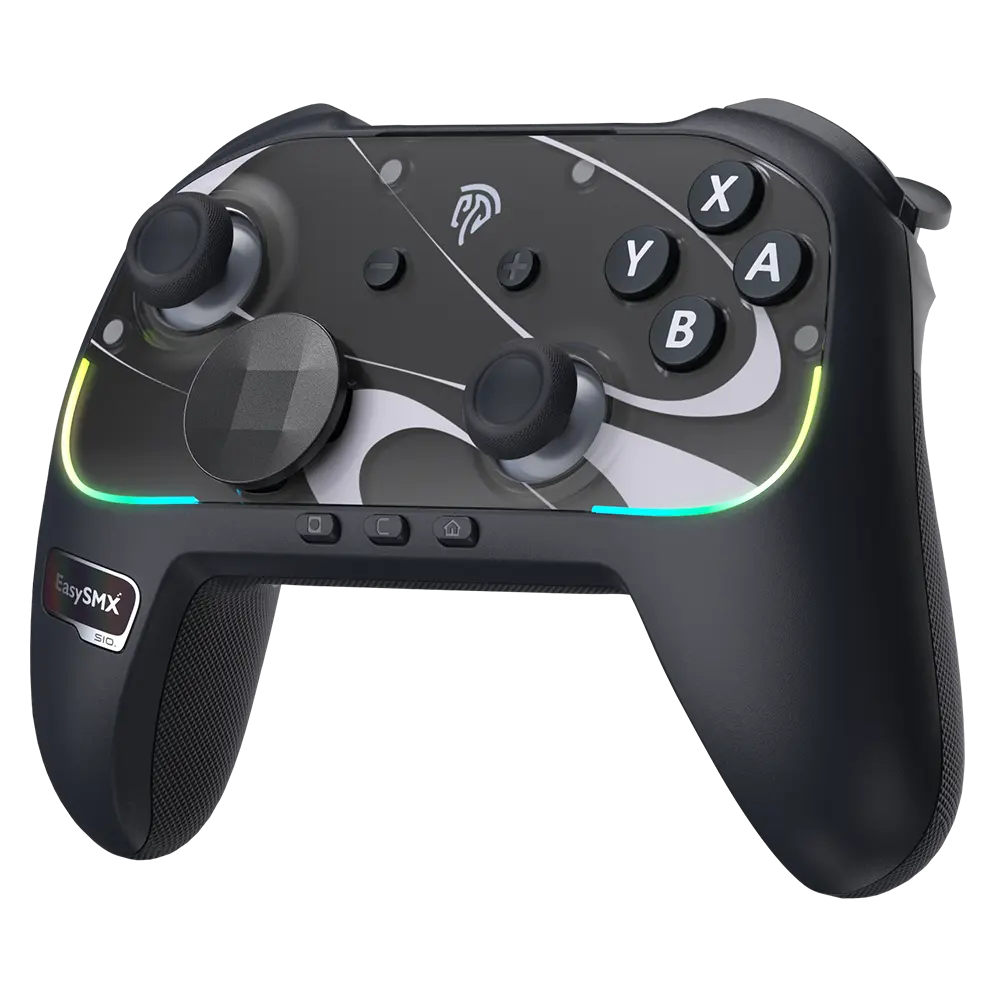
Seamless Multiplatform Gaming: Mastering iOS and Android Support
Children rarely stick to a single device. One moment they’re playing on a family iPad during a road trip, and the next they’re switching to an Android tablet at home or connecting to a smart TV for a bigger-screen experience. A multiplatform controller eliminates the need to buy separate gamepads for each device, saving money and reducing clutter while giving kids the freedom to play wherever inspiration strikes. More importantly, it removes the technical barriers that can turn an excited child into a frustrated one when their favorite controller simply won’t work with a particular device.
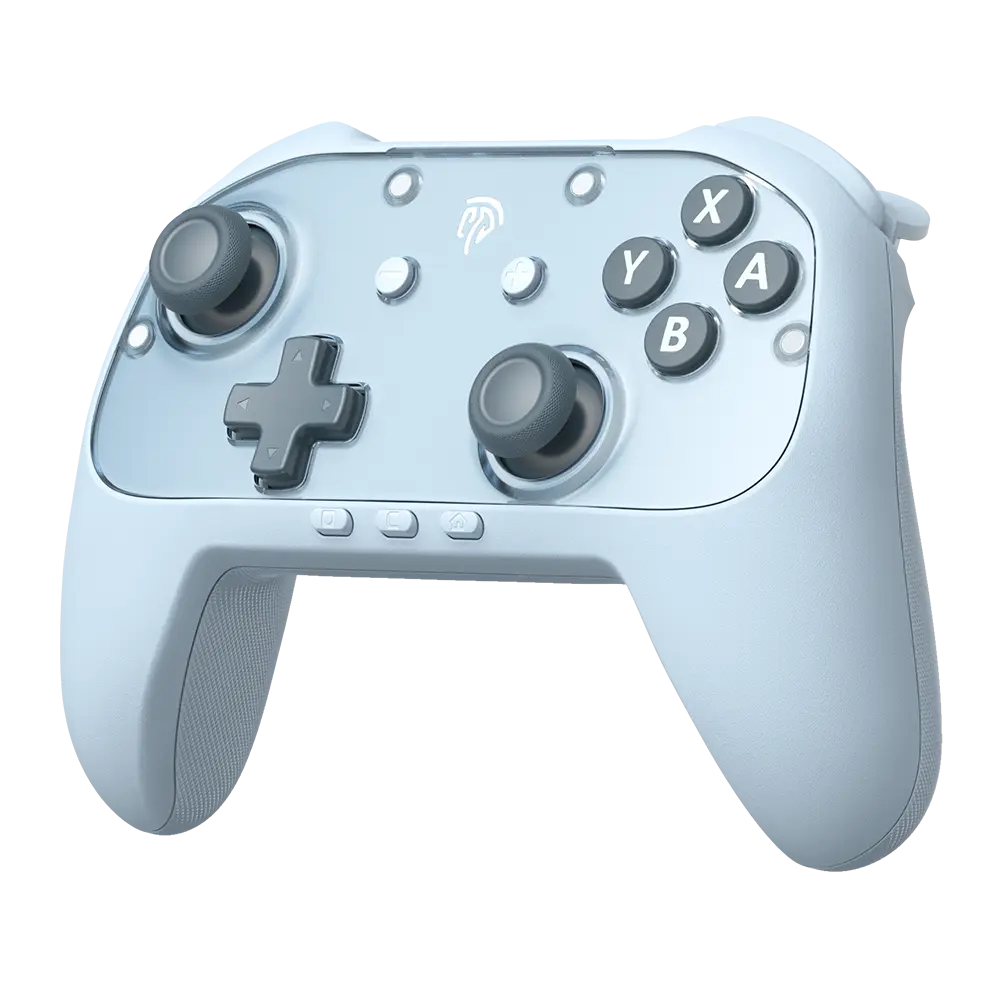
iOS and Android support has become a baseline expectation for modern wireless gamepads, but the quality of that support varies considerably. Apple’s MFi (Made for iPhone) certification ensures tight integration with iPhones and iPads, including proper button mapping in supported games without additional configuration. On the Android side, controllers that follow the standard HID gamepad protocol work across most devices, though some budget options struggle with inconsistent button mapping depending on the phone manufacturer. The best multiplatform controllers handle both ecosystems natively, switching between them with a simple button combination or a dedicated mode toggle. Brands like EasySMX have focused on streamlining this cross-platform experience, offering gamepads that transition between iOS, Android, and console connections without requiring complex reconfiguration.
Setting Up Across Different Devices
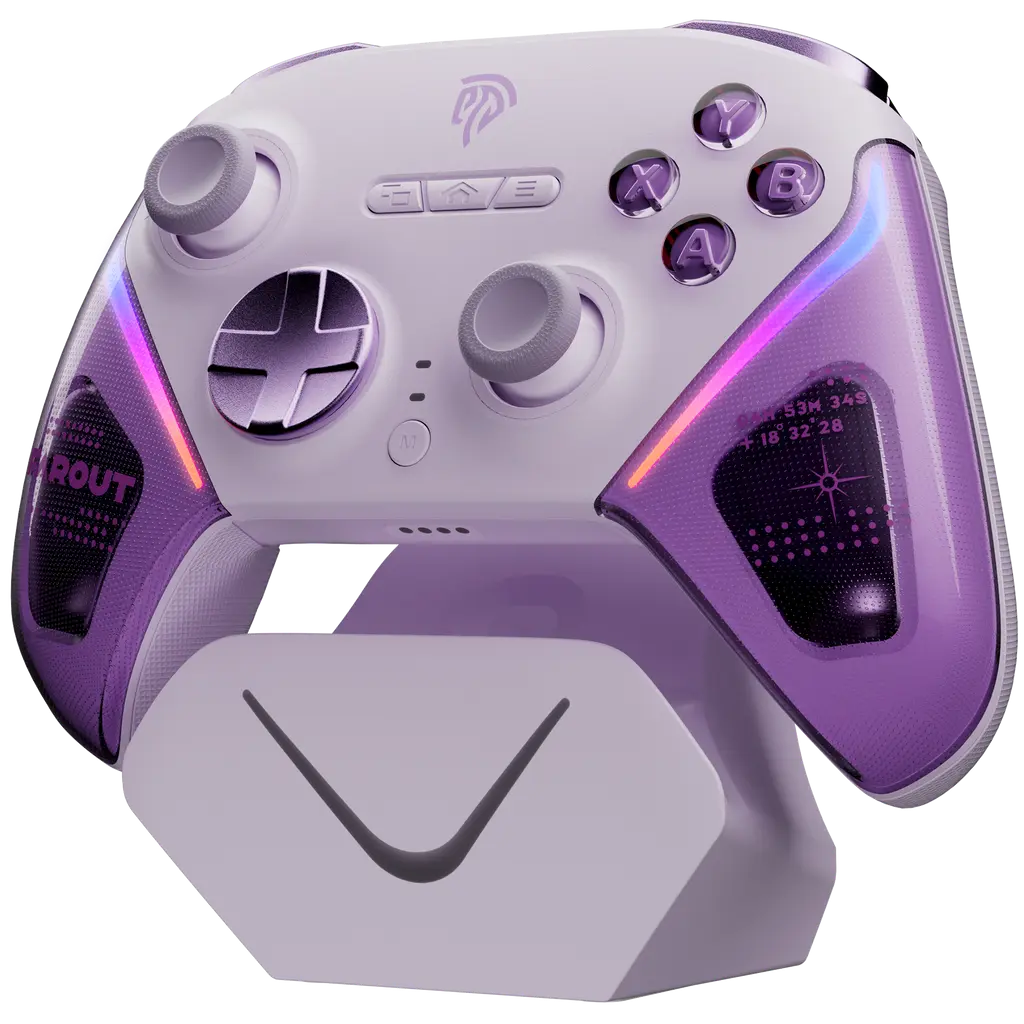
Pairing a wireless controller to a smartphone or tablet typically follows a straightforward process: hold the designated pairing button until the LED flashes, open Bluetooth settings on the device, and select the controller from the available list. On iOS, navigate to Settings, then Bluetooth, and tap the controller name once it appears. Android follows a similar path through Settings and Connected Devices, though the exact menu labels differ between brands like Samsung, Google, and Xiaomi. For console or PC connections, many multiplatform gamepads require switching to a different mode—often by holding a specific button combination during power-on—before they become discoverable to that platform. The most common challenge parents encounter is a controller that previously paired to one device refusing to connect to another. The fix is usually simple: fully power off the gamepad, re-enter pairing mode, and “forget” the controller in the Bluetooth settings of the old device before attempting a fresh connection on the new one. Keeping the controller’s firmware updated through the manufacturer’s companion app also resolves many compatibility quirks that surface after device operating system updates.
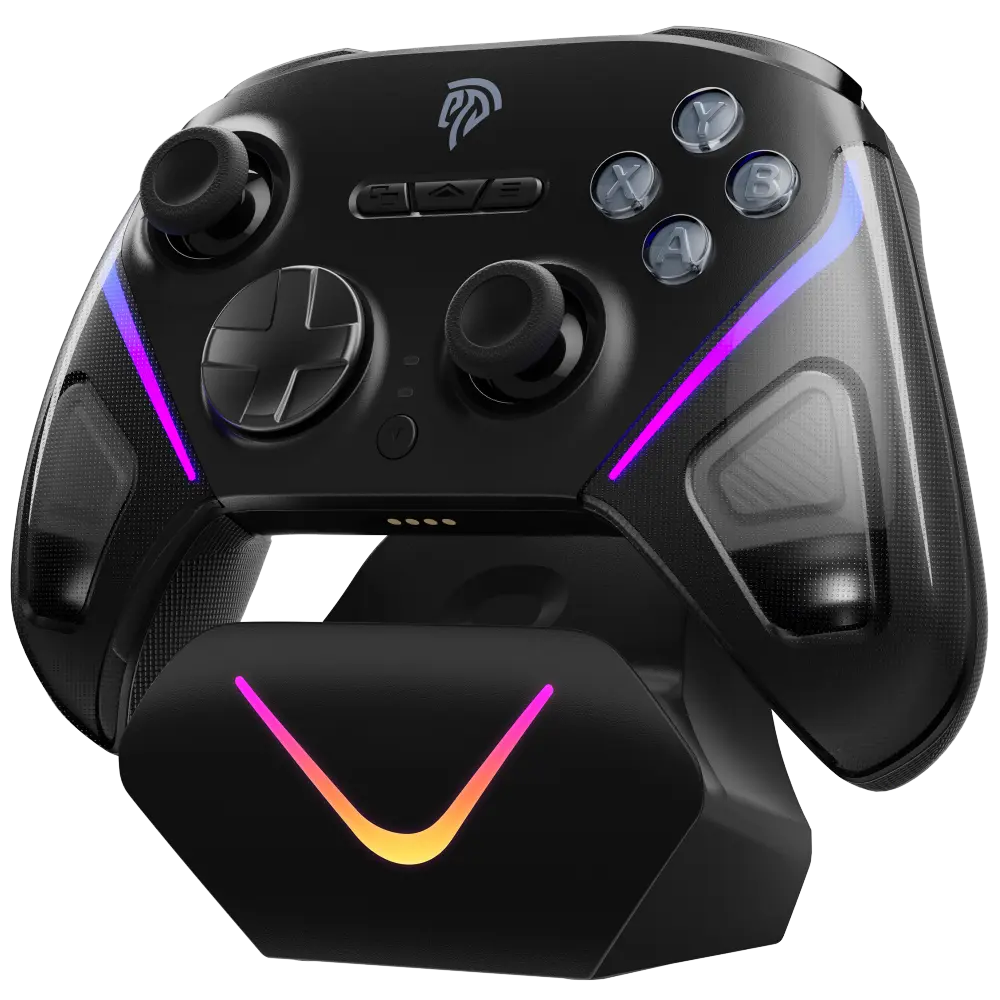
Essential Features for Enhanced Gaming Fun: Beyond Basic Controls
A controller that merely connects to a device isn’t enough to keep a child genuinely engaged. The features that transform a basic gamepad into something kids actually enjoy using go well beyond simple directional input and face buttons. Responsive controls, thoughtful ergonomics, and smart customization options create the kind of immersive experience that makes gaming fun rather than a fight against uncooperative hardware.
Ergonomic design deserves more attention than most parents give it. Children’s hands are significantly smaller than adult hands, and a controller shaped for a grown-up’s grip forces awkward finger stretches that cause fatigue and reduce accuracy. The best gamepads for younger players feature slimmer grips, shorter trigger reaches, and face buttons spaced closer together so small thumbs can hit every input without strain. Weight matters too—anything over 200 grams becomes tiring for a six-year-old during extended play, while something too light feels cheap and imprecise. The sweet spot sits around 150 to 180 grams, heavy enough to feel substantial without exhausting small wrists.
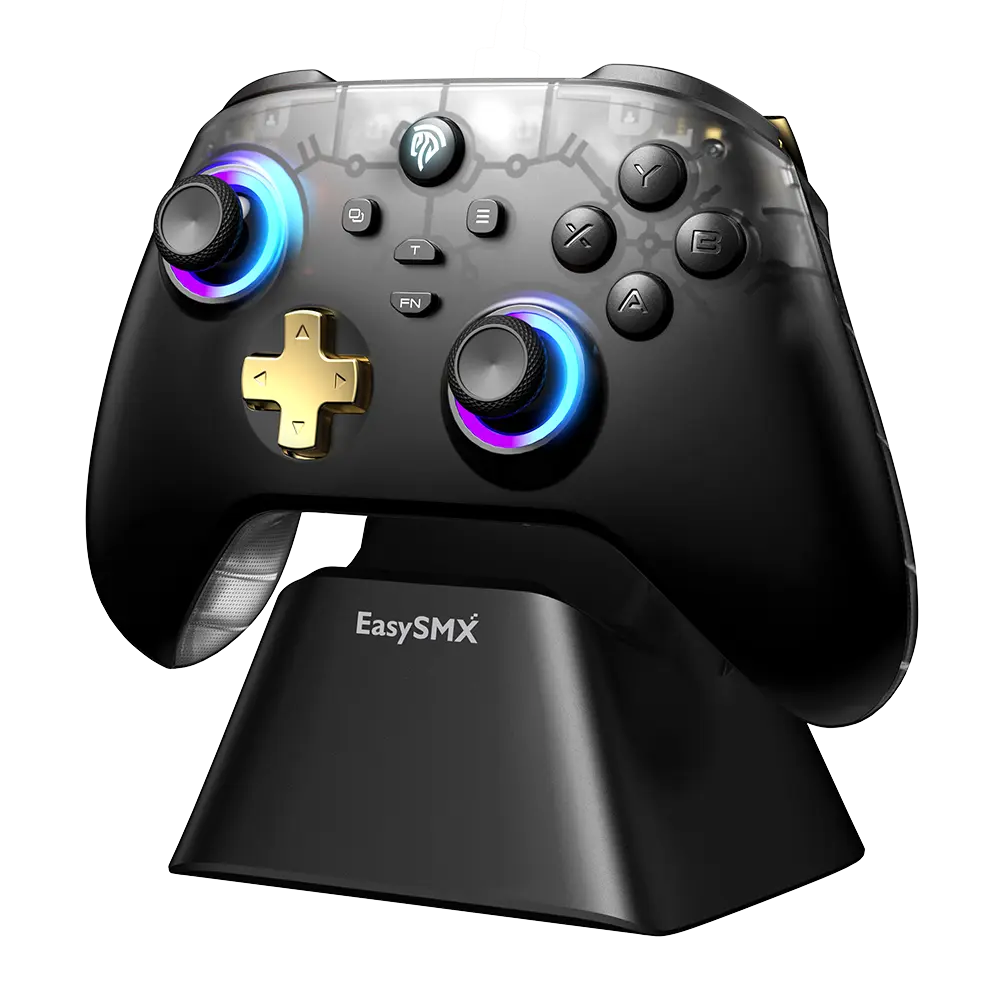
Customizable buttons add another layer of engagement. Some controllers allow parents or older children to remap inputs through a companion app, assigning complex actions to a single press. This proves especially valuable for younger kids who struggle with multi-button combinations in more advanced games. Adjustable vibration intensity is another underrated feature—strong haptic feedback enhances immersion for older children, but it can startle or distract younger ones, so the ability to dial it down or disable it entirely gives parents useful control over the experience.
The Role of Trigger Buttons in Modern Gaming
Trigger buttons have evolved from simple on-off switches into analog inputs that detect varying degrees of pressure, and this distinction shapes how children interact with entire game genres. In racing games, an analog trigger button lets a child feather the accelerator through tight corners rather than lurching between full speed and a complete stop. Action and adventure titles use graduated trigger input for aiming precision—a light press might ready a bow while a full squeeze releases the arrow. Even platformers increasingly map abilities to triggers, making their responsiveness central to the gaming fun a child experiences.
When evaluating trigger button quality, parents should pay attention to a few practical details. Smooth, consistent resistance throughout the pull indicates quality internal springs—triggers that feel gritty or stick partway through their travel will frustrate children and wear out faster. The travel distance matters as well; shorter throws suit smaller fingers that lack the strength for deep pulls. Some controllers feature adjustable trigger stops, small switches on the back that limit travel for games requiring rapid tapping rather than graduated pressure. Parents can test this in-store by pressing each trigger slowly and feeling for dead zones or inconsistent feedback. A well-made trigger button should respond the instant pressure is applied and return to its resting position crisply when released, with no mushiness or delay that disrupts gameplay timing.
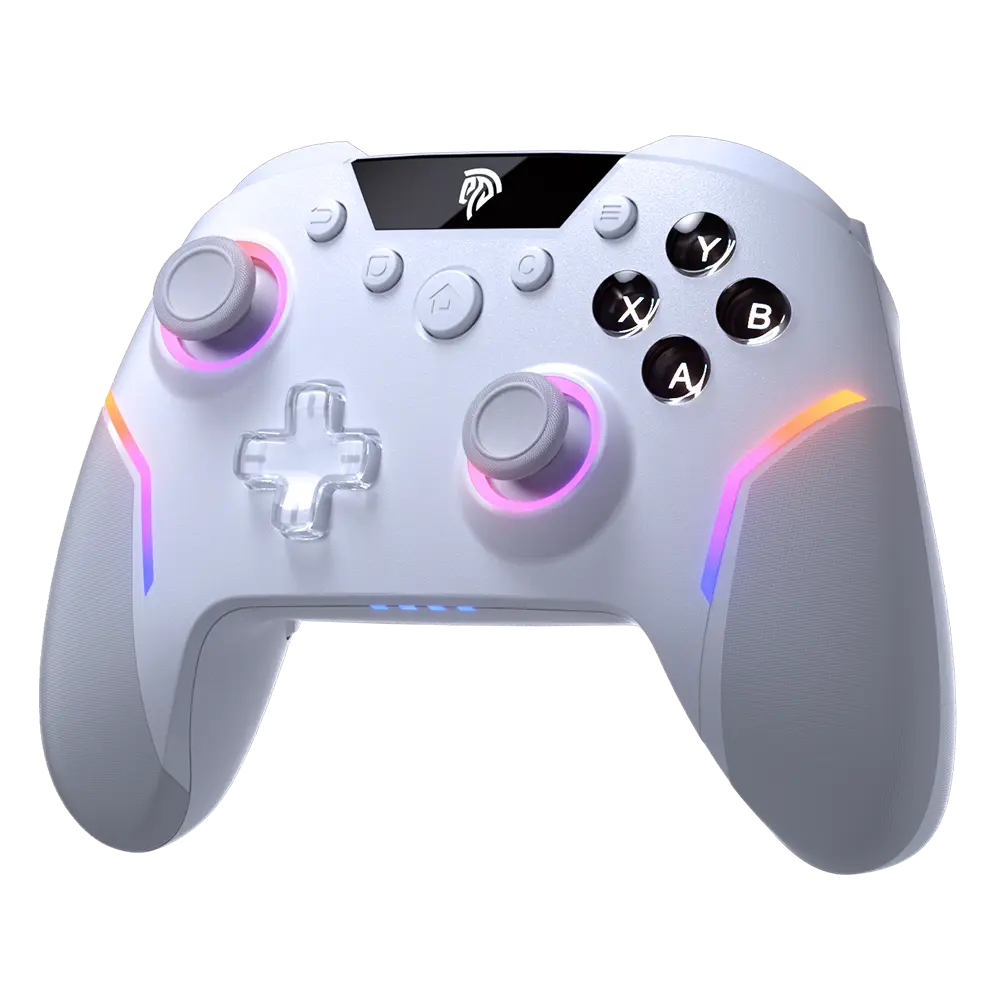
A Parent’s Practical Guide: Choosing and Setting Up the Perfect Wireless Gamepad
Selecting the right wireless controller for your child doesn’t require deep technical knowledge, but it does benefit from a structured approach. The sheer number of gamepads on the market can overwhelm parents who just want something that works, lasts, and keeps their child happy across multiple devices. By breaking the decision into manageable steps and following through with proper setup and care, you can land on a gamepad that serves your family well for years rather than months.
Start by honestly assessing your child’s age, hand size, and gaming habits. A five-year-old who plays casual tablet games on weekends has very different needs than a ten-year-old who games daily across a Nintendo Switch and an Android phone. Younger children benefit from compact, lightweight controllers with simplified button layouts and strong drop resistance, while older kids may want the full analog trigger experience and programmable buttons that grow with their skill level. Consider which platforms your household actually uses—if your child splits time between an iPad and a PC, verify that any gamepad you consider explicitly supports both without requiring adapters or workarounds.
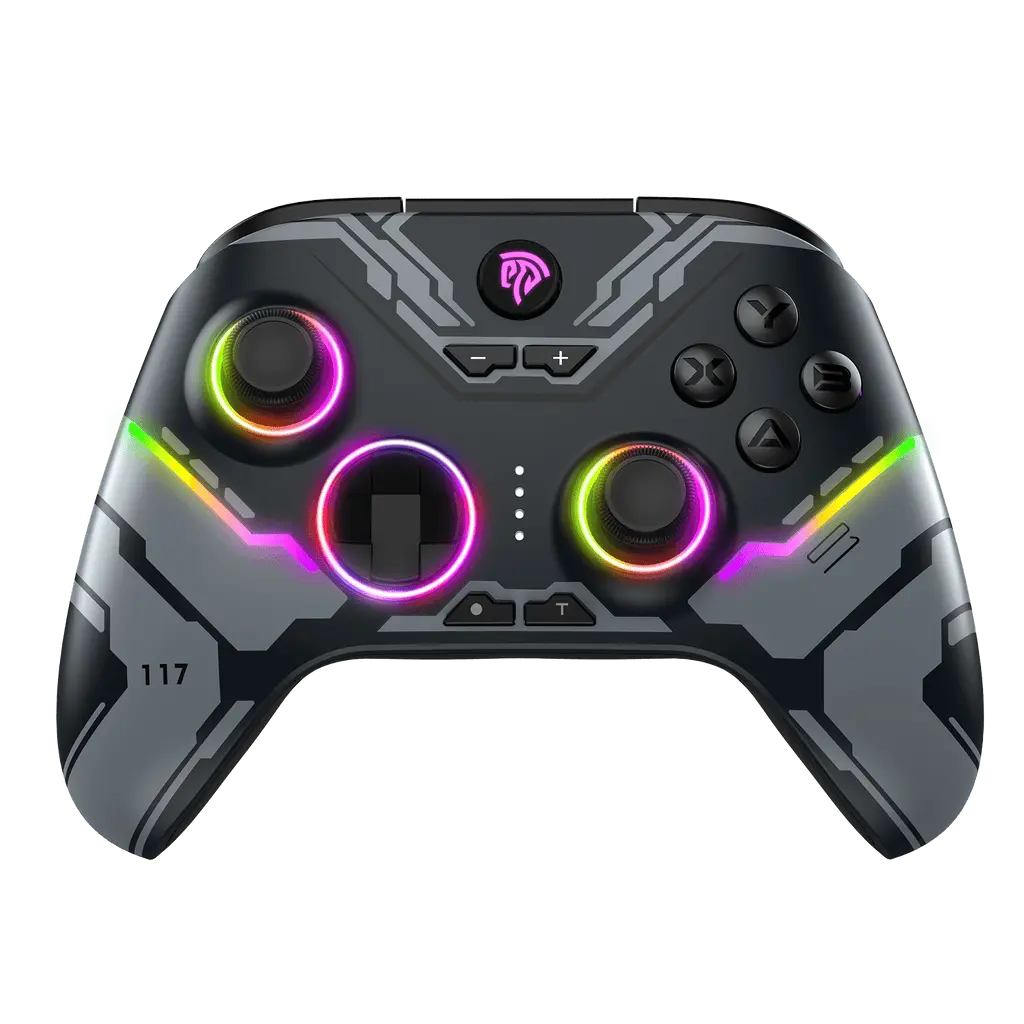
Ease of use should weigh heavily in your decision. The best wireless controller in the world fails its purpose if a child can’t power it on and connect it independently. Look for gamepads with clear LED indicators showing connection status and battery level, intuitive pairing processes that don’t require a companion app just to get started, and automatic reconnection to the last paired device. These seemingly small conveniences eliminate the daily friction that turns gaming time into tech-support time for parents.
Step-by-Step Selection Process
Begin by defining your budget and expected usage frequency—controllers used daily justify a higher investment in build quality than those pulled out occasionally during travel. Next, research durability ratings by reading parent-focused reviews that specifically mention drop tests and long-term joystick performance rather than relying solely on manufacturer claims. Third, verify iOS and Android compatibility by checking whether the gamepad carries MFi certification for Apple devices and confirms HID protocol support for Android; cross-reference this with your specific device models if possible. Fourth, test ergonomics and trigger button feel in person when you can, paying attention to whether your child’s fingers reach all inputs comfortably without stretching. If buying online, prioritize retailers with generous return policies so you can evaluate fit at home. Finally, check for parental controls or safety features such as screw-secured battery compartments, play-time reminder functions, and volume limiters for controllers with built-in speakers. This five-step process filters out unsuitable options quickly and focuses your attention on gamepads genuinely designed for the way children play.
Initial Setup and Ongoing Maintenance Tips
Once you’ve chosen a gamepad, invest fifteen minutes in proper initial setup to avoid headaches later. Fully charge the controller before first use—most lithium batteries perform better long-term when initially charged to capacity. Download the manufacturer’s companion app if one exists, then check for firmware updates immediately, as launch firmware frequently contains connectivity bugs resolved in early patches. Pair the controller to each device your child will use, testing button responsiveness in an actual game rather than just confirming the Bluetooth connection registers. Calibrate joysticks through your device’s accessibility or controller settings if the option is available, establishing accurate center points from the start.
For ongoing maintenance, wipe the gamepad weekly with a slightly damp microfiber cloth to remove oils and grime that degrade grip surfaces and work into button seams. Use a dry toothbrush around joystick bases and trigger mechanisms to dislodge crumbs or dust before they cause sticking. Store the controller in a case or dedicated drawer rather than loose in a toy bin where other objects press against joysticks and triggers. Regarding battery care, avoid leaving the gamepad plugged in overnight consistently—charge it when low and disconnect once full to preserve battery cycle life. If the controller won’t be used for several weeks, store it at roughly half charge. These simple habits extend the functional life of a quality wireless controller well beyond what neglect would allow, protecting both your investment and your child’s uninterrupted gaming fun.
Choosing the Right Gamepad for Lasting Family Gaming Joy
Finding the right wireless controller for your child comes down to three pillars that work together rather than in isolation. Durability ensures the gamepad remains safe and functional through inevitable drops, spills, and enthusiastic button mashing—protecting both your child and your wallet from premature replacements. Multiplatform support with reliable iOS and Android compatibility gives your family the flexibility to game across tablets, phones, consoles, and PCs without accumulating a drawer full of single-purpose controllers. And thoughtful features like responsive trigger buttons, ergonomic sizing for smaller hands, and customizable inputs transform a simple accessory into something that genuinely enhances your child’s enjoyment and skill development.
The selection process doesn’t need to be overwhelming. By assessing your child’s specific needs, verifying compatibility with your household devices, and prioritizing build quality over flashy extras, you can make a confident purchase that lasts. A well-chosen wireless gamepad does more than survive daily use—it becomes a reliable companion that makes gaming time smoother for kids and stress-free for parents, bringing the whole family closer to the shared fun that gaming at its best provides.