

A USB drive is a miniature portable storage device used for the storage and transfer of data. Yet, in the case of a broken or corrupted USB drive, the necessary data is lost instantly. Data loss can cause stress when essential photos or documents disappear unexpectedly. Simple steps can help recover files from USB drive without hesitation, which is essentially covered in this guide.
Part 1. Common Causes of Data Loss on USB Drives
Part 2. Preparing for USB File Recovery
Part 3. No-Software Needed: Fast Checks to Find Lost Files
Part 4. Best and Safe Method: Use Recovery Software for Lost Data
Conclusion
Part 1. Common Causes of Data Loss on USB Drives
Files on USB drives may vanish and create concern over important saved information. Below are a few causes that lead to recover deleted files from USB faster and avoid repeats:
- Physical Damage: Dropping or bending can break tiny parts inside, making the drive stop working. Cracks inside may block access, causing files to disappear.
- Unsafe Removal: Pulling the drive out can interrupt saving and leave files incomplete. This action often causes folders to fail to open or data to disappear.
- Environmental Damage: Water, dust, or heat can damage contacts and corrupt stored data. Such exposure may cause the drive to appear missing or unreadable later.
- Malware Attacks: Malicious programs can silently hide or remove files. Infections may change folder details, making stored data look empty to users.
- Memory Wear: Frequent use wears storage cells, causing errors after many save sessions. Low-quality drives may fail earlier, losing files without clear signs.
Part 2. Preparing for USB File Recovery
It’s important to prepare your USB carefully before attempting recovery. Let’s explore some preparations that improve the chances of successfully recover files from USB drive:
- Stop Using: Stop using the USB immediately to prevent new data from overwriting the deleted files inside.
- Check for Damage: Look for cracks or signs of water before deciding on safe recovery actions.
- Avoid Changes: Do not format, repair, or add files, as this can harm file recovery results.
- Create Backup: Make a full copy of the image so the original USB data remains untouched during recovery.
- Save Space: Prepare enough space elsewhere to save recovered files and never use the same USB drive again.
Part 3. No-Software Needed: Fast Checks to Find Lost Files
Sometimes, lost files on USB drives can be retrieved quickly without extra software. This part explains some methods that help users recover deleted files from pen drive:
1. Check the Recycle Bin
You must check the Recycle bin, as it is often the fastest way to recover files from a USB drive. Deleted files commonly stay there temporarily, keeping original names and locations intact. By inspecting it first, you can restore essential data without extra tools. Take guidance below to recover lost files from the Recycle bin:
Step 1. Insert the USB drive into your computer and wait until it is detected properly. Next, open the “Recycle Bin” by double-clicking its icon on the desktop.
Step 2. Afterwards, use the search bar to find files by name or file type quickly. At last, right-click the required file and select “Restore” to recover it instantly.
2. File History/Previous Versions (Windows)
Windows offers file history and previous versions to access older file versions quickly, helping users recover deleted files from USB drives. These tools automatically save versions of documents, pictures, and folders. Consequently, it provides a fast, built-in alternative before using specialized recovery software. Thus, review the steps below to restore files from previous versions in Windows:
Step 1. To initiate, open the “File Explorer” and locate the folder on the USB drive where files were previously stored.
Step 2. After accessing it, right-click the folder and select “Properties” from the menu.
Step 3. Next, open the “Previous Versions” tab and choose a version, then click “Restore.”
3. Command Prompt
Users should use the CMD to check USB drives and fix hidden file issues. Plus, it can scan for corrupted actors and reveal hidden or system-protected files. Furthermore, with built-in commands, you can often recover deleted files from pen drive. CMD detects invisible folders caused by glitches, making lost files visible without extra software. Hence, let’s explore the steps below to recover lost files using Command Prompt:
Step 1. Press “Windows + R” together and type “CMD” and press the “Run as Administrator” button.
Step 2. Upon accessing it, type “chkdsk X: /f /r” and press “Enter,” and replace X with your drive letter.
Step 3. After that, insert “attrib -h -r -s /s /d X:\*.*” to recover hidden or unreachable files. Finally, open the USB drive in File Explorer to see previously invisible or lost files.
Part 4. Best and Safe Method: Use Recovery Software for Lost Data
If native methods do not work, you must try Recoverit data recovery so that you can recover files from USB drive. This advanced tool recovers 1,000+ file types like media and archives. Moreover, Recoverit allows saving files from drives that suddenly appear as RAW without further damage. The latest V14 version brings more accurate data recovery for users, making it an ideal choice.
Recoverit lets users preview recoverable files before restoring them safely. While recovering, all your data is secure, preventing further file corruption or loss. Moreover, you can recover data from internal or external hard drives with advanced AI technology. It also supports software and hybrid RAID recovery for all users, making its utility extensive.
Key Features
- Format Restore: Recovers files lost from mistakenly formatted drives without losing information.
- Virus Recovery: Restores files deleted or corrupted due to malware and virus attacks effectively.
- Lost Folder: Detects and restores entire lost folders beside individual deleted files.
Guide to Retrieve Lost Data and Deleted USB Files via Recoverit
This section explains the detailed steps to bring back lost data from a USB drive:
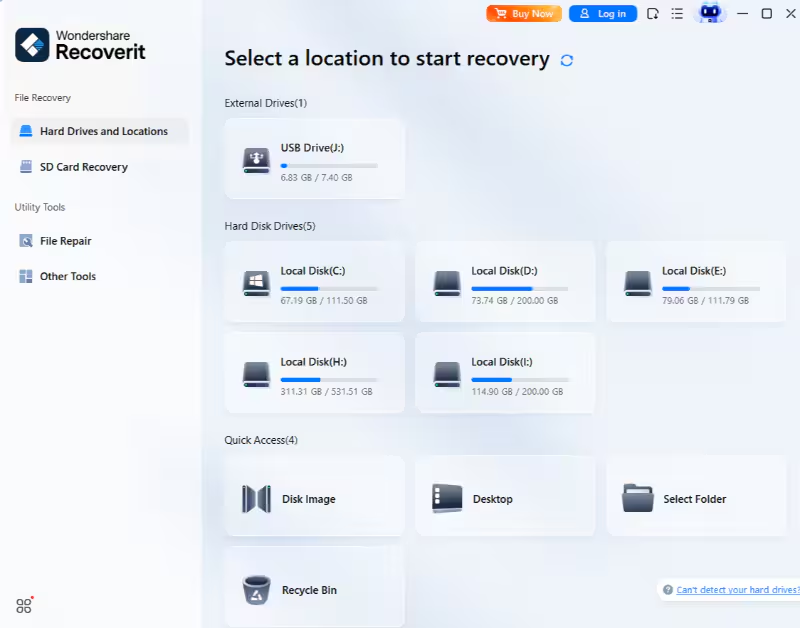
Step 1. Choose the Target Drive
When you access the “Hard Drives and Locations” tab, select the USB device where the lost files were stored.
Step 2. Scan the Selected Location
After a while, click the “Recover” button once the tool has scanned the selected drive.
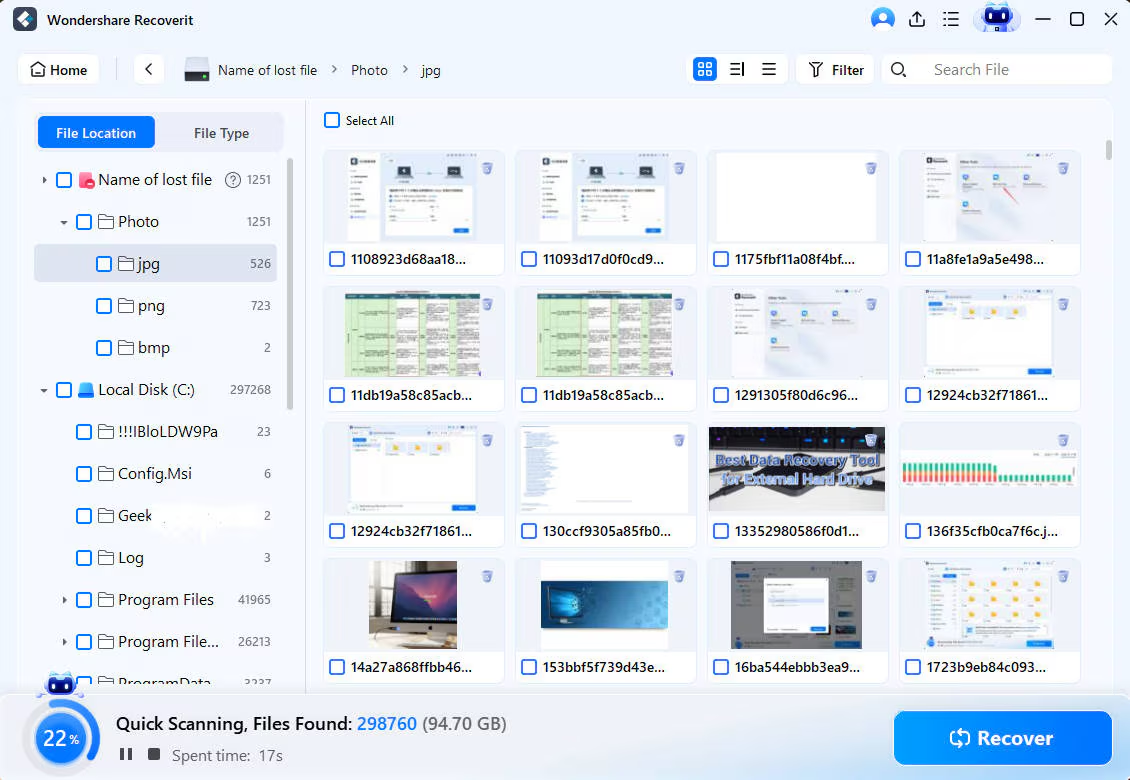
Step 3. View and Restore Your Files
As your selected files are recovered, click the “Recover” button and save them on your PC.

Conclusion
To summarize, USB data loss can interrupt work and cause worry when important files are gone. With the right approach, users can recover files from USB drive using built-in checks and careful handling. These methods help avoid further damage and data overwriting. However, when files remain missing or corrupted, you need a dependable recovery solution. Therefore, Recoverit provides a secure and AI-powered solution for complete data recovery.