
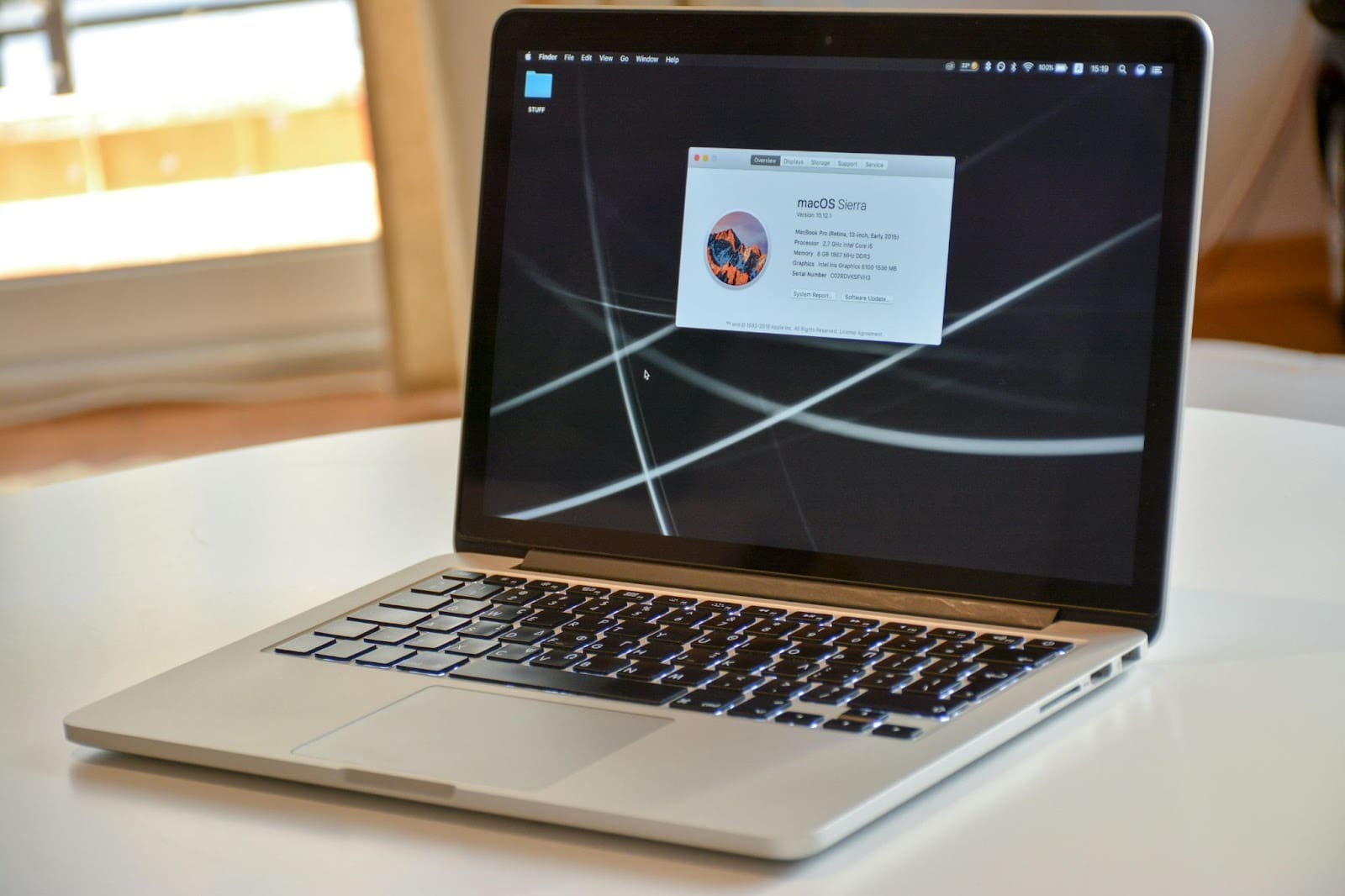
The Impact of macOS Updates on MacBook Performance
How macOS Updates Affect MacBook Performance: Complete Guide
macOS updates shape how your MacBook performs every day. From speed and battery life to security and app compatibility, these updates influence more than most users realize. While Apple designs each update to improve the experience, results can vary depending on your device and usage.
MacBooks run on one of the most refined operating systems for Mac users. Still, after certain macOS updates, users notice changes in responsiveness. Some Macs feel faster. Others slow down. Understanding why this happens helps you make smarter update decisions and learn how to make your Mac faster over time.
Understanding MacOS Updates
MacOS updates are planned software releases intended to improve the Apple desktop operating system. Their emphasis is on better performance, security, and general reliability on the Mac devices.
Purpose of MacOS Updates
There are multiple reasons why Apple publishes macOS updates:
- Security patches: Keep the Macs safe against malware and cyber threats.
- Fix bugs: Correct system bugs that can be dangerous and cause crashes or freezing.
- Performance improvements: Optimize system processes and memory usage.
- New features: Add tools, interface changes, and system capabilities.
Major updates often introduce wide-ranging changes, while smaller releases focus on stability and security.
Frequency of MacOS Updates
Apple normally releases one major macOS update each year and minor updates every few weeks. Notification is sent to users via the System Settings, and the user can also check automatically.
Staying up to date with the macOS updates is a good way to make sure that it works with apps, accessories, and services. Lack of updating systems will pose the threat of their vulnerability to bugs and security vulnerabilities.
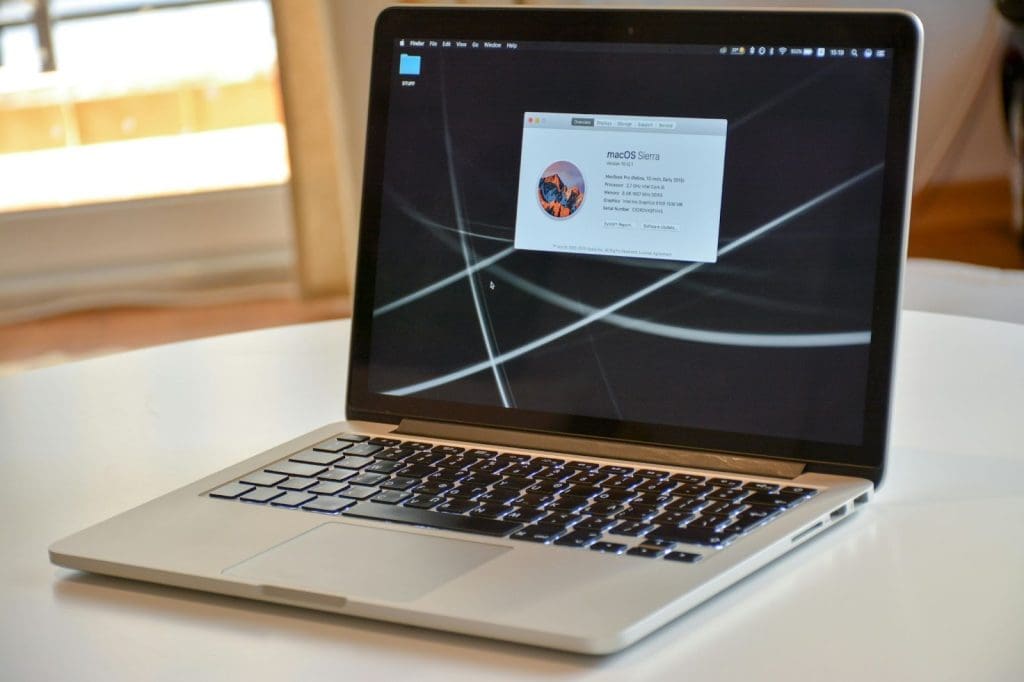
Why You Shouldn’t Ignore macOS Updates: Key Reasons and Benefits
Keeping your Mac current through regular macOS updates plays a key role in long-term performance.
1. Enhanced Security
Apple includes security improvements in nearly every update. According to Apple security documentation, most updates address known vulnerabilities that could expose user data.
2. Bug Fixes
Unresolved bugs can slow performance or cause crashes. Installing the latest updates improves stability and reduces unexpected system behavior.
3. New Features
Updates introduce improvements to usability and efficiency. Features added in Big Sur macOS, for example, improved system responsiveness and power management.
4. Compatibility
New apps and peripherals are designed for current operating systems for Mac. Running outdated software often leads to errors and reduced performance.
5. Optimisation
macOS updates include background optimizations that clean system files and improve workflows, helping Macs stay responsive.
Impact of macOS Updates on Mac Performance
The macOS updates may influence the performance both positively and negatively, depending on the hardware and usage.
Improved Performance
Many updates include performance optimizations that enhance speed. Apple benchmarks show improvements in app launch times and file handling after major releases. Reviews, including a recent Mac Sequoia review, highlight smoother multitasking on newer devices.
Degraded Performance
Temporary slowdowns can occur after installing macOS updates. Background indexing and system optimization may increase CPU usage for a short period. Some users also experienced the “broken pipe on macOS Sequoia” error, which Apple addressed in later patches.
Real-World Examples
- macOS Mojave improved app launch speeds through memory compression.
- macOS Catalina caused short-term slowdowns that were resolved through updates.
- Big Sur macOS delivered up to 50 percent faster wake-from-sleep times.
Facing Performance Problems After a macOS Update? Here’s What to Do
When your Mac becomes slow after the update of macOS, a series of actions can be done to restore the performance.
1. Restart Your MacBook
Restarting clears cached processes and allows the update to complete background tasks.
2. Check Activity Monitor
Activity Monitor helps identify apps using excessive system resources.
3. Update Apps
App updates ensure compatibility with new macOS versions.
4. Reset SMC and PRAM
Resetting system controllers can resolve power and performance issues.
5. Repair Disk Permissions
Disk Utility can fix permission conflicts caused during updates.
6. Check for Malware
Malware scans help rule out unwanted software affecting performance.
7. Erase and Reinstall macOS
A clean installation removes lingering issues and restores system stability. Learning force quit keys on Mac can also help manage frozen apps during troubleshooting.
Read more: laptop battery replacement
