

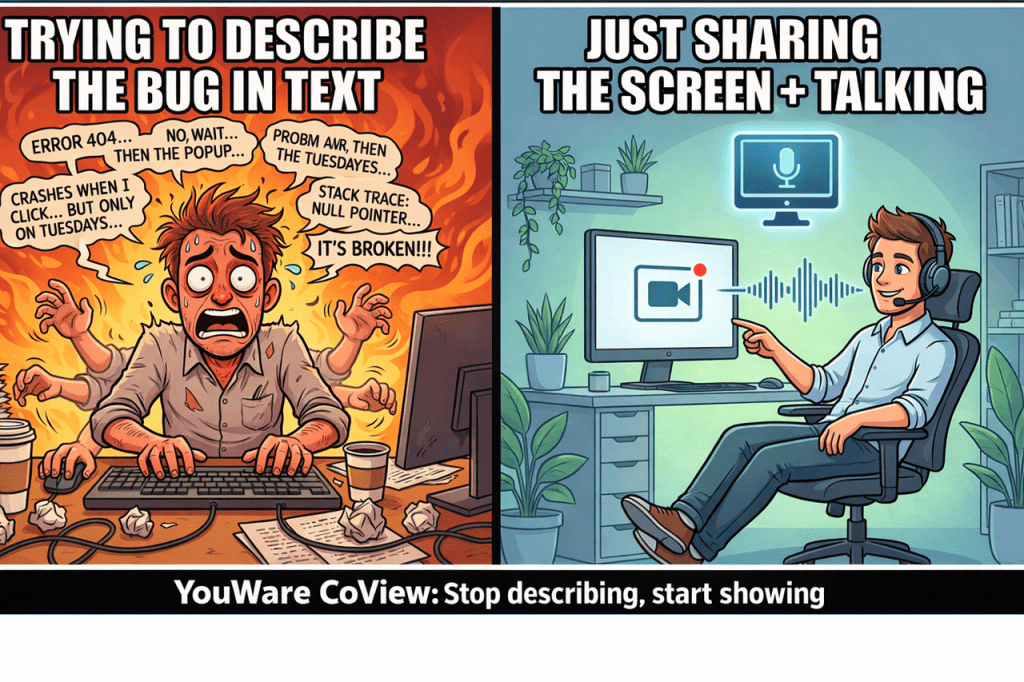
If you’re new to vibe coding, you’ve probably lived through this little tragedy: you explain a bug for ten minutes, you swear you’re being clear, and the AI fixes the wrong thing anyway. Not because it’s clueless. Because you and the model never looked at the same scene.
A lot of bugs don’t sit politely inside a snippet. They show up in motion—hover states, timing quirks, a breakpoint that collapses at one specific width, a click that fails only after a certain sequence. You can describe all of that in text, sure. You can also describe a movie to someone who hasn’t seen it. Results may vary.
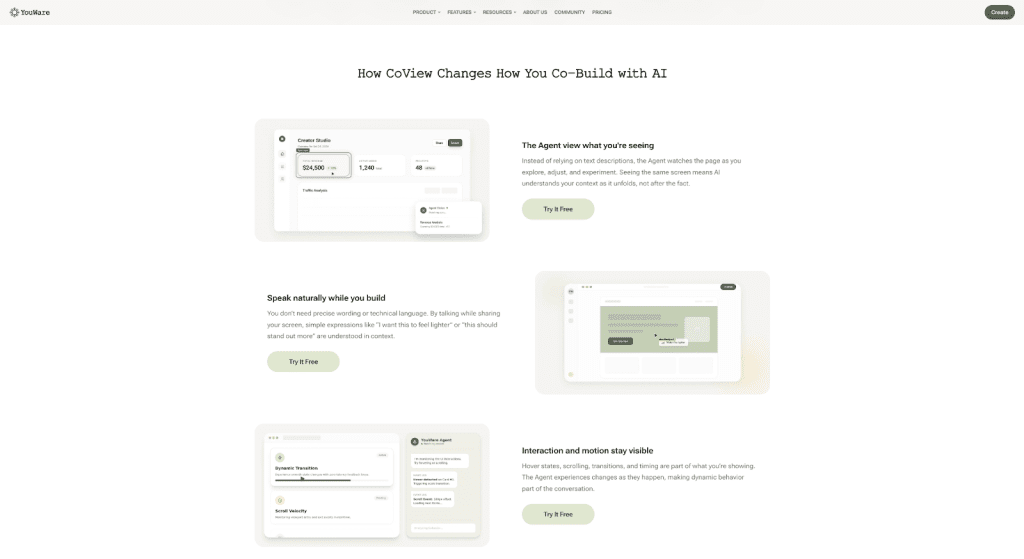
That’s where CoView in YouWare earns its keep. It lets you share your screen and talk through what you’re seeing, so the agent can follow along in real time. Still, CoView isn’t magic. It works best when you drive it with a clean routine.
So here’s a beginner-friendly workflow you can repeat: share → narrate → confirm understanding → change in small steps → verify like you mean it. Do it once and you’ll stop feeling like you’re negotiating with your own bug report.
Before you start: make the problem showable and verifiable
Here’s the quickest way to waste time: jump into screen share without knowing what you’re trying to prove.
A simple rule helps: if you can’t show the issue and you can’t verify the fix, you can’t trust the result. You might get lucky. Most days you won’t.
Take 20 seconds and write three lines. That’s it.
The 20-second format
- What’s happening: the symptom you can observe
- Where it happens: page + element + device/state
- What “done” looks like: the acceptance check
Example
- What’s happening: “The CTA button jumps on hover.”
- Where: “Pricing page hero, desktop and mobile.”
- Done looks like: “Hover shouldn’t shift layout; spacing stays steady.”
This tiny setup does two big things. It keeps you from rambling, and it gives CoView a finish line. Without that finish line, the agent will keep guessing—and you’ll keep correcting.
When to switch from typing to CoView
Most people wait too long. They try to brute-force the explanation in text, get irritated, then screen share as a last resort.
Flip the habit. Switch to CoView when either of these is true:
- The issue is visible (layout, alignment, spacing, animation, responsive behavior).
- The issue depends on a path (scrolling, timing, click sequences, state changes).
If you catch yourself typing “it looks weird” or “it only happens when…,” that’s your cue. Don’t fight the medium. Open CoView in YouWare and show the thing.
Screen sharing that helps the AI “see” what you mean
Screen sharing isn’t just flipping a switch. The quality of what you show changes how fast the agent locks onto the problem—and whether it locks onto the right problem.
A practical playbook:
Share the relevant window, not your whole desktop
If you can share the browser window or a single app, do that. Less noise means fewer wrong assumptions.
Zoom until the bug looks obvious
Tiny alignment gaps vanish at 100%. Bump to 110–150% when needed. You’re not being extra—you’re being readable.
Use your cursor like a highlighter
Circle the element. Hover it. Pause. Think of your cursor like you’re pointing something out over coffee: “This thing, right here.”
Hold the “bad frame” for a beat
Hover bug? Keep the hover state on screen. Transition glitch? Stop on the ugly moment. Give CoView time to register what you’re reacting to.
Show a reference if you have one
If another page or section looks right, show it right after the broken one. A reference cuts confusion fast because it turns “fix it” into “make it like this.”
The voice script that keeps you from spiraling
You don’t need to sound technical. You just need a little structure so your narration doesn’t turn into a live diary.
Here’s a script you can literally read out loud:
- What you’re seeing is…
- It happens when I…
- It should instead…
- (Optional, but calming) I’m not sure why—please find the cause first.
Example
“What you’re seeing is the modal closes but the page doesn’t update. It happens when I click Confirm quickly after opening. It should update the list immediately. I’m not sure why—please locate the cause first.”
That’s the difference between “please fix” and “we’re debugging like adults.”
The highest-leverage step: make it repeat back what it understood
Before the agent changes anything, have it restate the situation. This catches misunderstandings while they’re still cheap.
Say:
“Before you modify anything, repeat what you saw on my screen, what you think the problem is, and what ‘done’ means.”
If the restatement is even slightly off, correct it immediately and re-demonstrate. You’ll feel tempted to skip this when you’re in a hurry. Ironically, skipping it is how you end up in the longest sessions.
Make changes in small steps so nothing blows up
Beginners often ask for a huge fix in one go. Sometimes that works. When it doesn’t, you’re left with a tangled change and no clue what caused the new weirdness.
Use a safer loop:
- Fix the smallest visible issue first
- Confirm it’s correct
- Move to the next related issue
A simple breakdown
- “Stop the hover jump.”
- “Adjust padding on mobile.”
- “Match spacing to the section below.”
After each step, ask to see the result and verify on desktop and mobile. Small steps keep the work stable and keep the agent from wandering.
Verification and wrap-up: prove it, then write it down
A fix isn’t real until you try to break it.
Run a quick checklist:
- Re-run the exact path that triggered the bug
- Test edge states (fast clicks, empty states, slow network if relevant)
- Check responsive breakpoints if UI is involved
- Scan nearby UI so you don’t miss collateral damage
Then do future-you a favor. Ask for a summary.
“Summarize what you changed, why it fixes the issue, and what I should watch for later.”
You’ll thank yourself when you revisit the project and can’t remember why you touched that component in the first place.
When CoView drifts: fast recoveries that work
Sometimes CoView will drift. That’s normal. The win is recovering quickly instead of letting it keep digging.
If it’s looking at the wrong thing
- Re-share only the relevant window
- Zoom in more
- Point with the cursor and pause
- Say: “Ignore everything else—focus only on this component.”
If it misheard your goal
- Restate “done” in one sentence
- Show a reference (“Make it like this other section”)
- Ask it to repeat understanding again before edits
If it fixed the wrong layer (CSS vs logic)
- Narrow scope: “Don’t change styling. Only address click handling.”
- Ask for diagnosis first: “Explain the cause before making more changes.”
If the fix breaks something new
- Pull back: “Undo that direction.”
- Reduce variables: change one thing only, then retest
If it keeps guessing
- Force investigation mode:
“Don’t propose solutions yet. List three plausible causes and how you’ll verify each.”
That’s the mindset that makes CoView feel powerful: you steer, the tool executes. It’s vibe coding at its best—fast, concrete, and anchored in what’s actually happening on screen.
