
Stop staring at that “File Format Not Supported” error.
You have a high-quality PNG, but the upload form only accepts JPG. Or maybe your website is loading slowly because that crisp logo file is a massive 5MB. You don’t need complex software like Photoshop just to change a file extension.
You need a fast, secure solution that shrinks the file size without ruining the image. Our PNG to JPG Converter handles the heavy lifting instantly.
Convert Your Images Instantly
Drag and drop your PNG files here or click to upload. Batch processing supported.
How to Convert PNG to JPG Without Losing Quality
Follow these steps to learn how to convert PNG to JPG online while maintaining the highest visual fidelity.
- Upload Your File: Drag your PNG images into the box above. We support batch uploading for up to 20 files.
- Adjust Quality (Optional): Use the settings gear to select “High Quality” (larger file) or “Standard” (maximum compression).
- Process: The tool automatically converts the file using smart compression algorithms.
- Download: Save your new JPGs individually or download them all as a single ZIP file.
Pro Tip: Always check your file size after conversion. You will typically see a 70-80% reduction in size with no visible loss in clarity.
PNG vs. JPG: Why the Format Matters
Why does every form ask for a JPG? It comes down to efficiency.
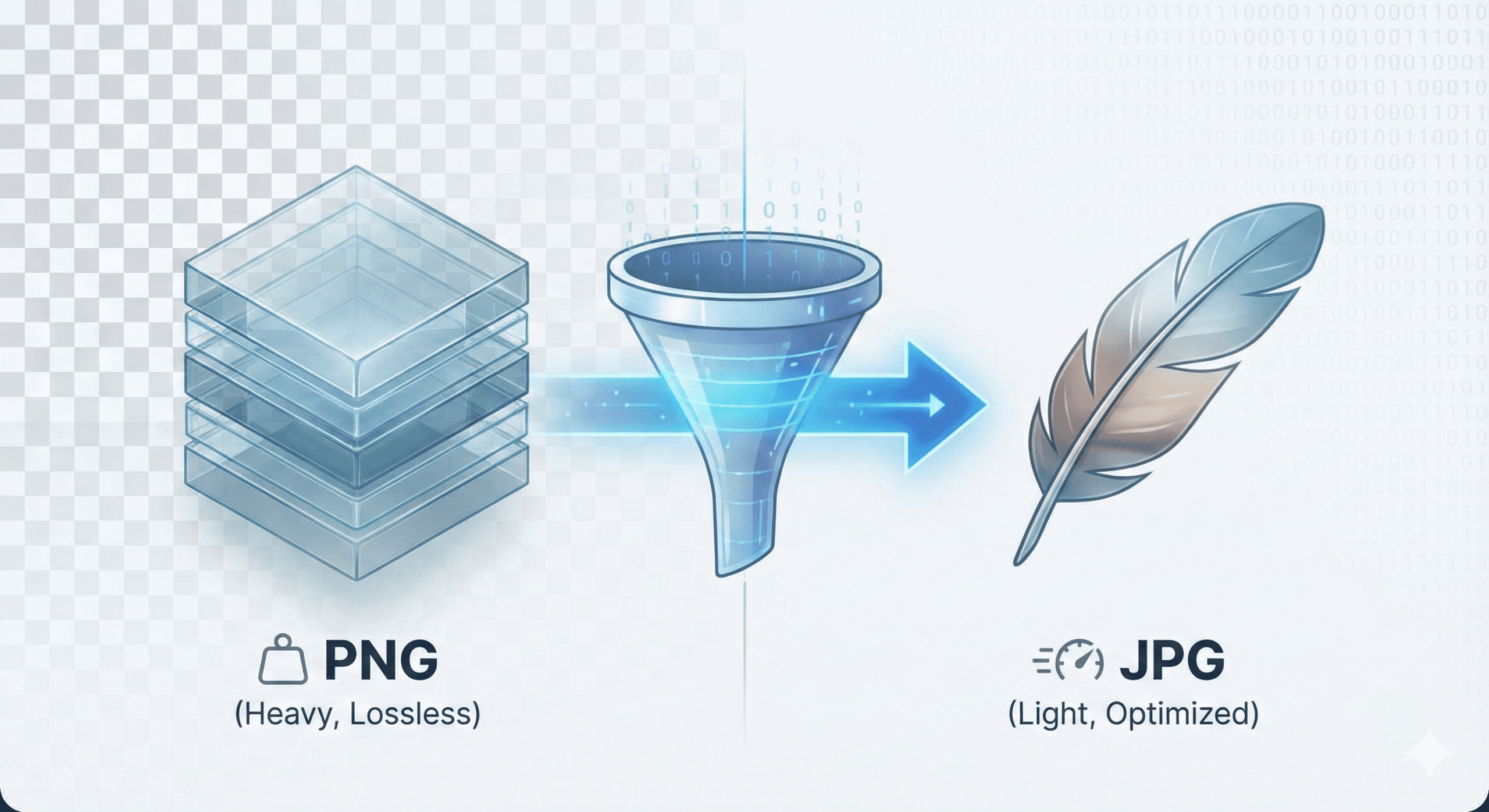
PNG (Portable Network Graphics) is a “lossless” format. It preserves every single pixel and supports transparency, making it perfect for logos and diagrams. However, this detail makes the files heavy.
JPG (Joint Photographic Experts Group) is a “lossy” format designed for photography. It discards data the human eye struggles to see, resulting in much faster load times.
Quick Comparison: When to Use Which
| Feature | PNG | JPG |
| Compression | Lossless (Retains all data) | Lossy (Discards redundant data) |
| File Size | Large (Heavy) | Small (Lightweight) |
| Transparency | Supported (Alpha Channel) | Not Supported (Solid Fill) |
| Best Use Case | Logos, Screenshots, Graphics | Photos, Website Banners, Email |
The “Transparency Trap”: Where Did My Background Go?
This is the most common confusion point for users.
If you convert a transparent PNG to JPG, the background will turn white (or black).
This is not a bug in our tool; it is a limitation of the JPG format itself. JPGs do not have an “Alpha Channel,” which is the data layer that tells a computer “this pixel is invisible.”
When you force a conversion, the software must fill those invisible pixels with a solid color to create a valid JPG image.
The Fix: If you absolutely need to keep the background transparent, do not use JPG. Stick with PNG or use WebP, a modern format that supports both compression and transparency.
Compression Tech: How We Reduce Size, Not Details
We use “Smart Lossy” compression. But what does that actually mean?
When a standard converter shrinks an image, it often blurs edges or creates “artifacts” (blocky noise). Our algorithm works differently. It analyzes the image texture and identifies redundant metadata and color frequencies that are invisible to the naked eye.
It removes this invisible weight while leaving the core visual structure intact. The result is a crisp image that is mathematically smaller, but visually identical to the source.
Is Online Conversion Safe?
Security is our priority. We understand you might be uploading sensitive invoices, personal photos, or client assets.
We use Client-Side Processing wherever possible. This means the heavy lifting happens right here in your browser. For features requiring server access, we enforce a strict Auto-Deletion Policy:
- Files are deleted from our servers after 1 hour.
- We claim no ownership of your content.
- All data transfer is protected by SSL Encryption.
Frequently Asked Questions (FAQ)
Does converting PNG to JPG reduce quality?
Yes, but usually not enough to notice.
JPG uses lossy compression, which technically discards data. However, high-quality converters use optimization algorithms that remove redundant information (like metadata) rather than visual details. For most users, the image will look identical to the original.
How do I convert PNG to JPG with a transparent background?
You cannot maintain transparency in a JPG file.
The JPG format does not support transparency (alpha channels). Converting a transparent PNG will always result in a solid background (usually white or black). If you need transparency, use PNG or WebP formats instead.
Is it safe to use a free online PNG to JPG converter?
Yes, if the tool uses secure data policies.
Look for tools that offer “Client-Side Processing” or explicit “Auto-Deletion” policies. This ensures your images are either processed locally on your device or deleted from the server immediately after conversion.
Which is better for printing, PNG or JPG?
JPG is generally better for printing photos.
Most print shops prefer high-resolution JPGs (300 DPI) because they are compatible with CMYK color profiles. PNG is better for printing vector-style graphics, text, or logos where sharp lines are critical.
How can I convert multiple PNG files to JPG at once?
Use a tool with “Batch Processing” capabilities.
Our tool allows you to select multiple files or drag an entire folder into the upload zone. Once processed, you can download all converted images simultaneously as a ZIP file to save time.
